nixarchy’s plugins
Omarchy’s desktop is a Quickshell shell, and a shell plugin is a panel, a bar
widget or a menu that lives inside it. Most of what nixarchy adds to Omarchy is
a NixOS answer to an Arch habit, and for a while each answer was a floating
terminal: an fzf picker for packages, distrobox commands for boxes,
nixarchy vm for sandboxes. These plugins put those jobs back where the rest of
the desktop already is: a chord and a list, keyboard-first, in the shell’s own
look.
Some are on by default: installed with nixarchy and turned on at your first login. Some stay opt-in on purpose. Each entry below says which. Turning one on happens once, so a plugin you switch off in Setup → Plugins stays off. Configuring nixarchy covers how to stop nixarchy installing one at all.
The keys below (Super+Alt+…) are seeded into ~/.config/hypr/bindings.lua on
new installs. nixarchy never edits that file afterwards, so on an existing
machine use the menu row, or copy the line from a fresh install.
| Plugin | What it’s for | Status | Open it |
|---|---|---|---|
| Package manager | apps, services, packages and options | on by default | Install ▸ Packages · Super+Alt+N |
| Flatpak and Snap | apps nixpkgs does not carry, from Flathub or the Snap Store | on by default | Install ▸ Flatpak & Snap |
| Podman | containers, images, volumes, networks | on wherever podman is | Apps ▸ Podman · Super+Alt+O |
| GitLab pipelines | CI for every project you belong to | on by default | Apps ▸ GitLab Pipelines · Super+Alt+P |
| Herdr sessions | your herdr sessions and their agents | on by default | bar (right) · Apps ▸ Herdr · Super+Alt+H |
| MicroVMs | disposable and permanent VMs, one list | on by default | Trigger ▸ Sandbox · Super+Alt+V |
| Distrobox | boxes, created from nixarchy’s templates | on wherever Boxes are | Trigger ▸ Boxes · Super+Alt+D |
| Dev environments | the per-project environments on this machine | on wherever devenv is | Apps ▸ Dev environments · Super+Alt+E |
| GitHub Actions | workflow runs, jobs and steps | on by default | Apps ▸ GitHub Actions · Super+Alt+A |
| Plugin Browser | the plugin marketplace, audited before you install | on by default | Setup ▸ Plugins ▸ Add Plugin · Super+Alt+U |
| Rebuild | the rebuild running now, and its log | on by default | Install ▸ Apply changes |
| ai-mirror | let an agent use your real desktop, and stop it | on by default | bar (right) · Super+Shift+Escape stops it |
| Runtime themes | switch the active palette across supported applications without a rebuild | on by default | Setup ▸ Themes |
| Menu | a Raycast-style palette in place of the Omarchy menu | installed, off by default | Setup ▸ Defaults ▸ Menu ▸ Nixarchy |
| Hyprforge | every Hyprland setting, previewed live on your real windows | on by default | Super+Space ▸ Hyprforge |
| Gliff-Manager | your gliff machines: ready or not, headless or mirror, connect | on wherever nixarchy installs gliff | the bar, or Setup ▸ Remote desktop ▸ Manage gliff machines |
| Voice | operate the desktop by talking to it | opt-in | — |
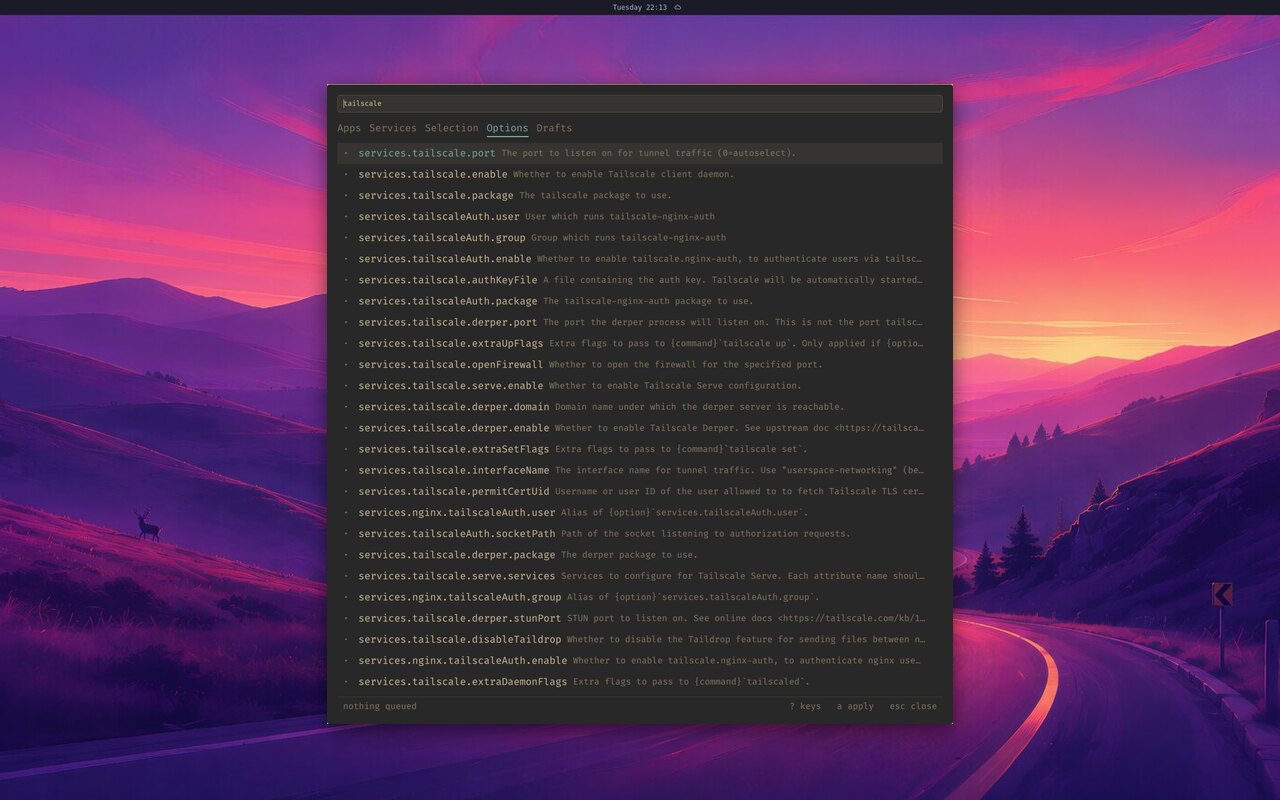
Package manager
What it solves. On NixOS you don’t pacman -S a package; it goes into your
configuration and a rebuild builds it. Before this panel, that meant a floating
terminal and an fzf picker, or opening ~/.config/nixarchy/apps.nix and
finding the right commented-out line. Every other surface on the desktop is a
chord and a list, and now so is this.
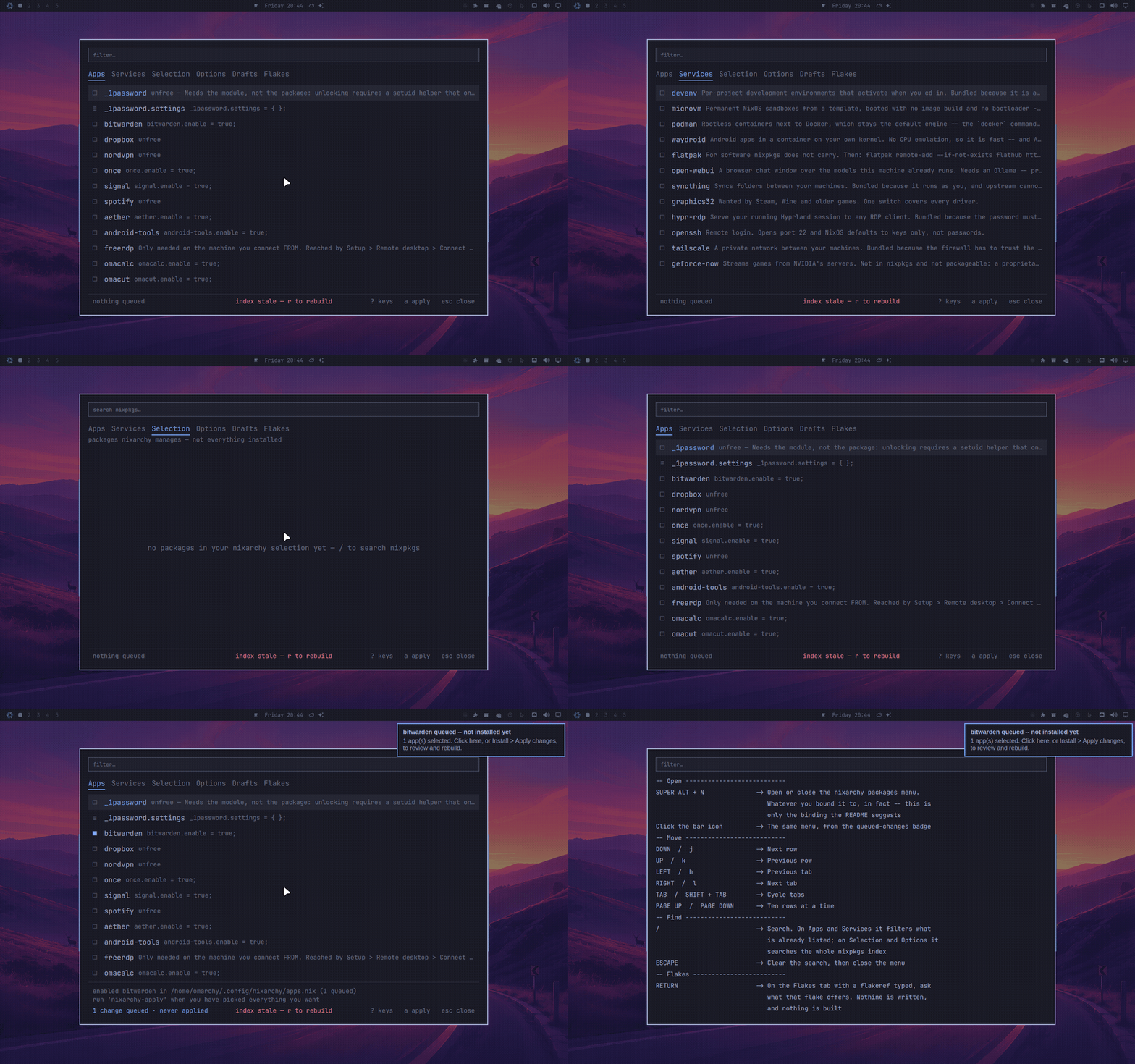
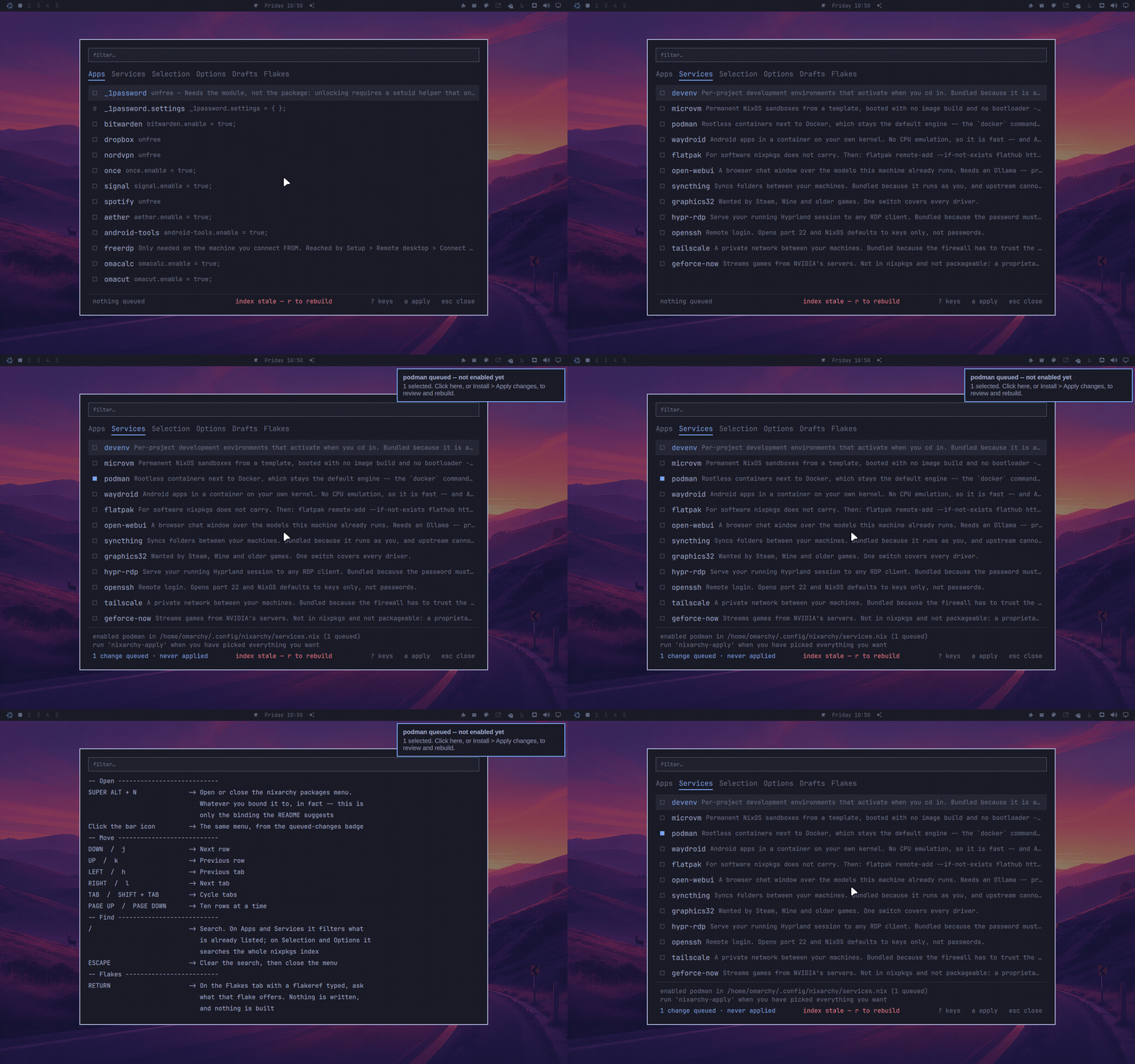
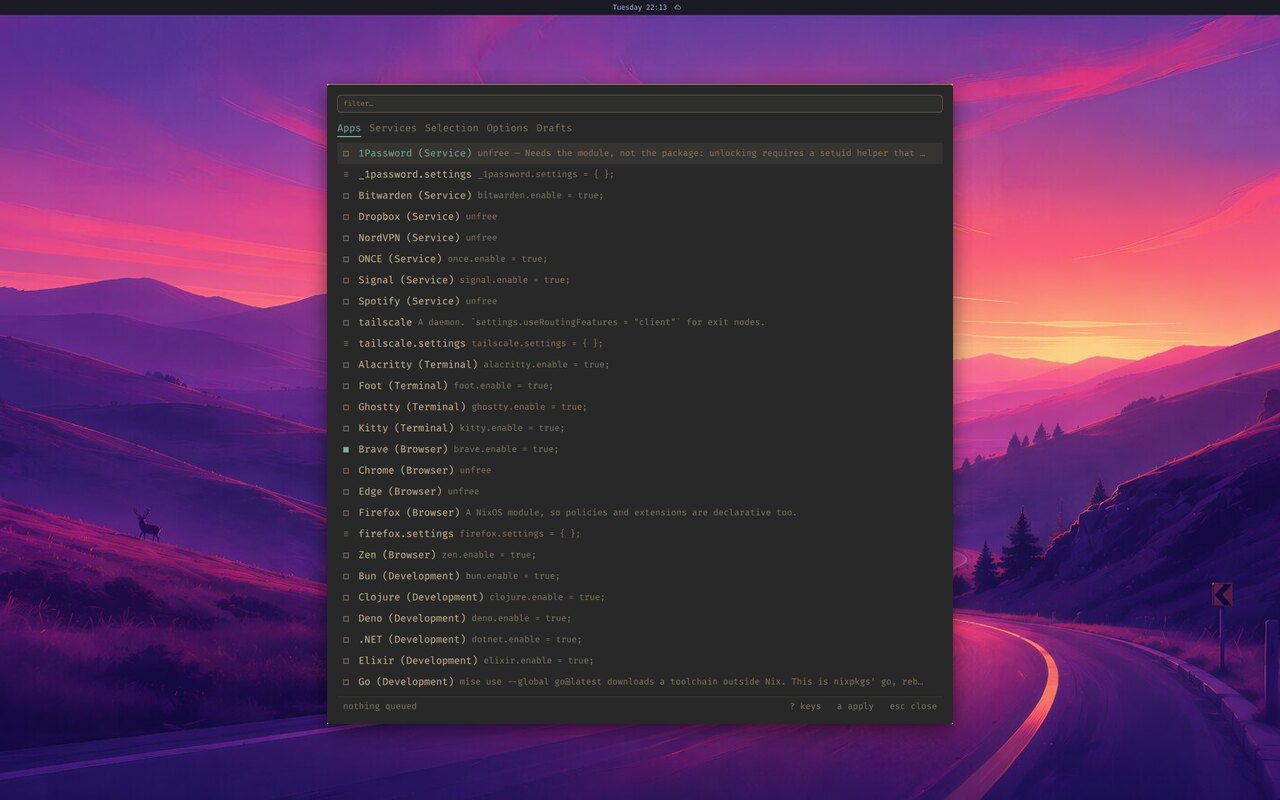
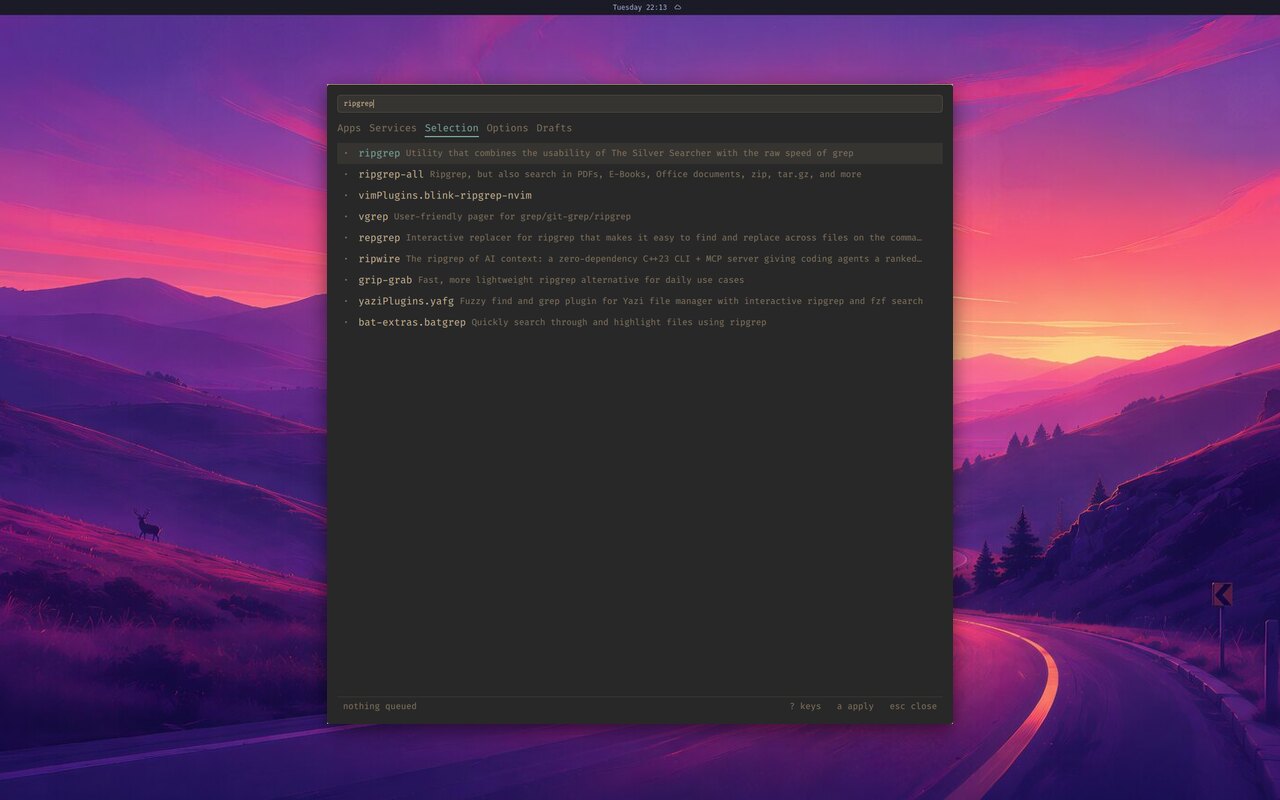
What it does. Search nixpkgs, turn curated apps and services on, add any package, and set NixOS options through a form. Everything is written to the same files nixarchy’s own commands write, then applied with one key. The rebuild asks for your password through the Omarchy dialog.
Flatpak and Snap
nixarchy-flatsnap · its own site
Paste a Flathub or Snapcraft link, an app ID, or an install line, check what
the app can reach, and queue it. Apply installs it declaratively: Flatpaks
through nix-flatpak, and Snaps through nix-snapd plus a small reconciler that
removes only what it installed. snapd runs only while a Snap is declared or
still being removed. See
Flatpak and Snap for the keys, the security notes and
removal.
Turn it off with programs.nixarchy.defaultPlugins.flatsnap = false;.
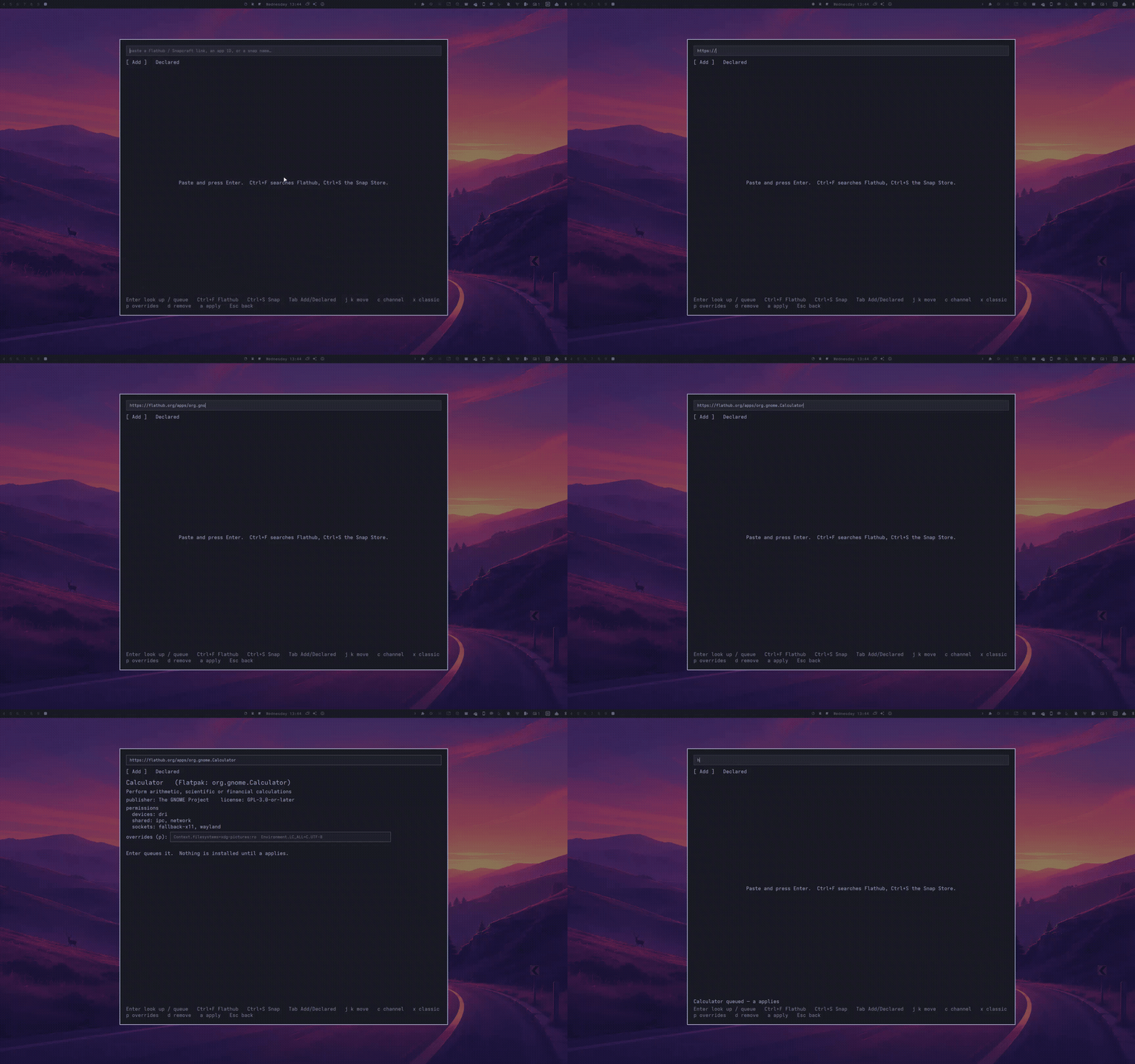
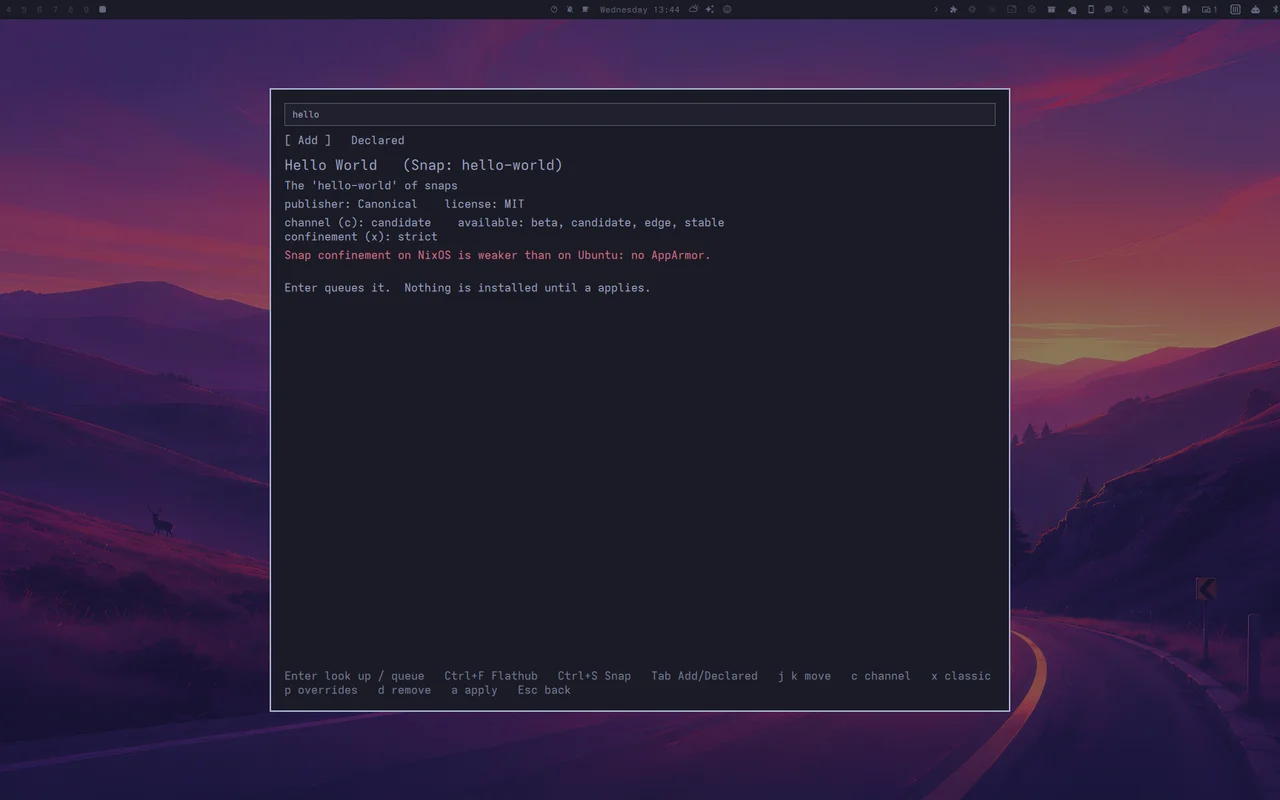
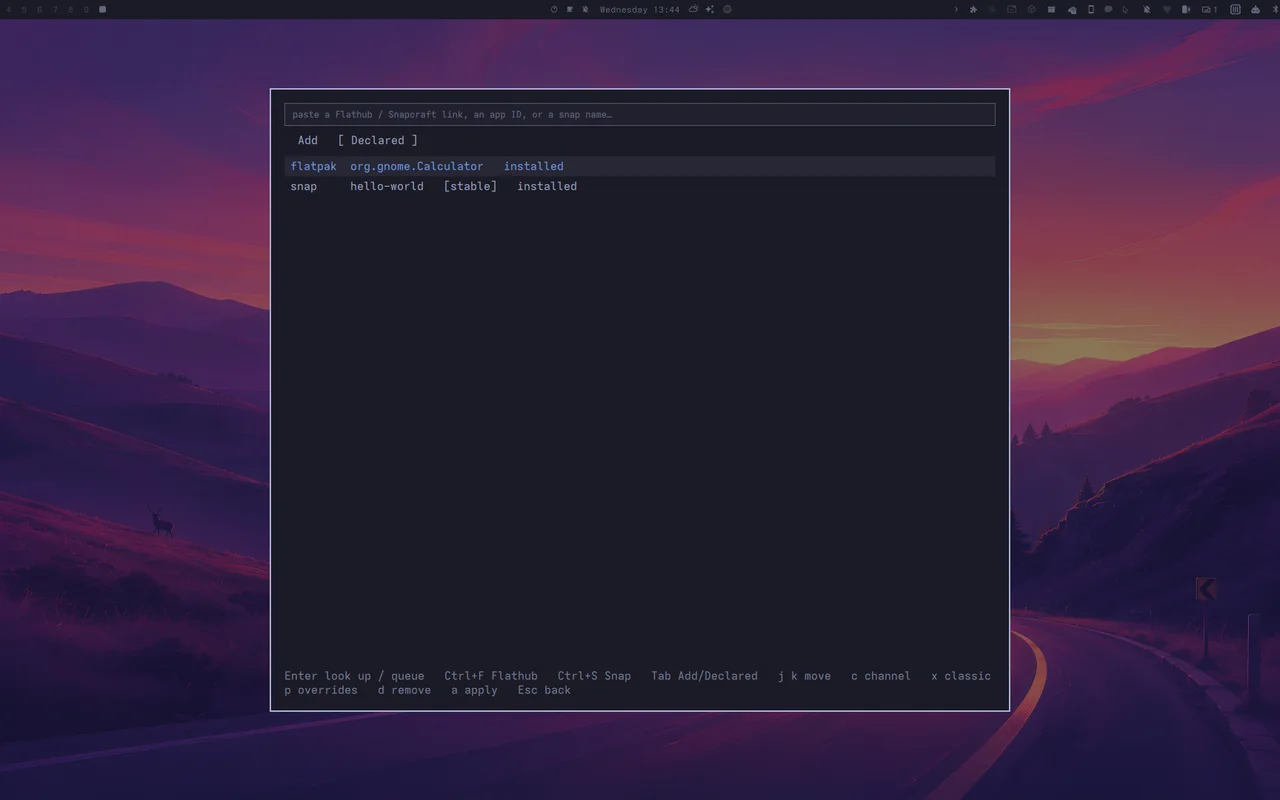
Recorded on a nixarchy laptop in Tokyo Night, applying into its real configuration; the build log is shortened.
Podman
nixarchy-podman · its own site
What it solves. Looking after rootless containers otherwise means a
terminal, podman ps, and remembering the flags. This keeps the everyday work
on the keyboard, without opening a shell.
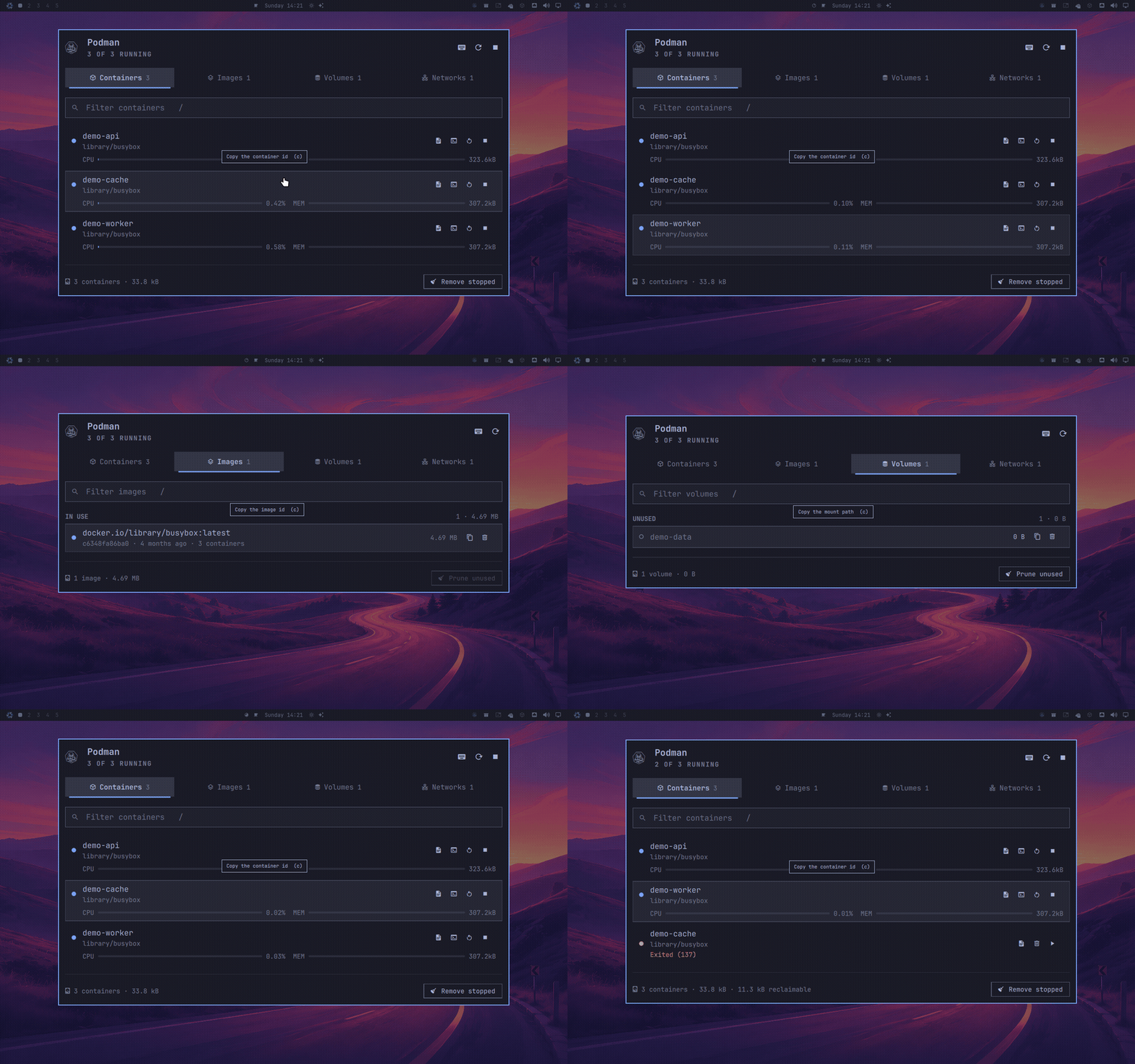
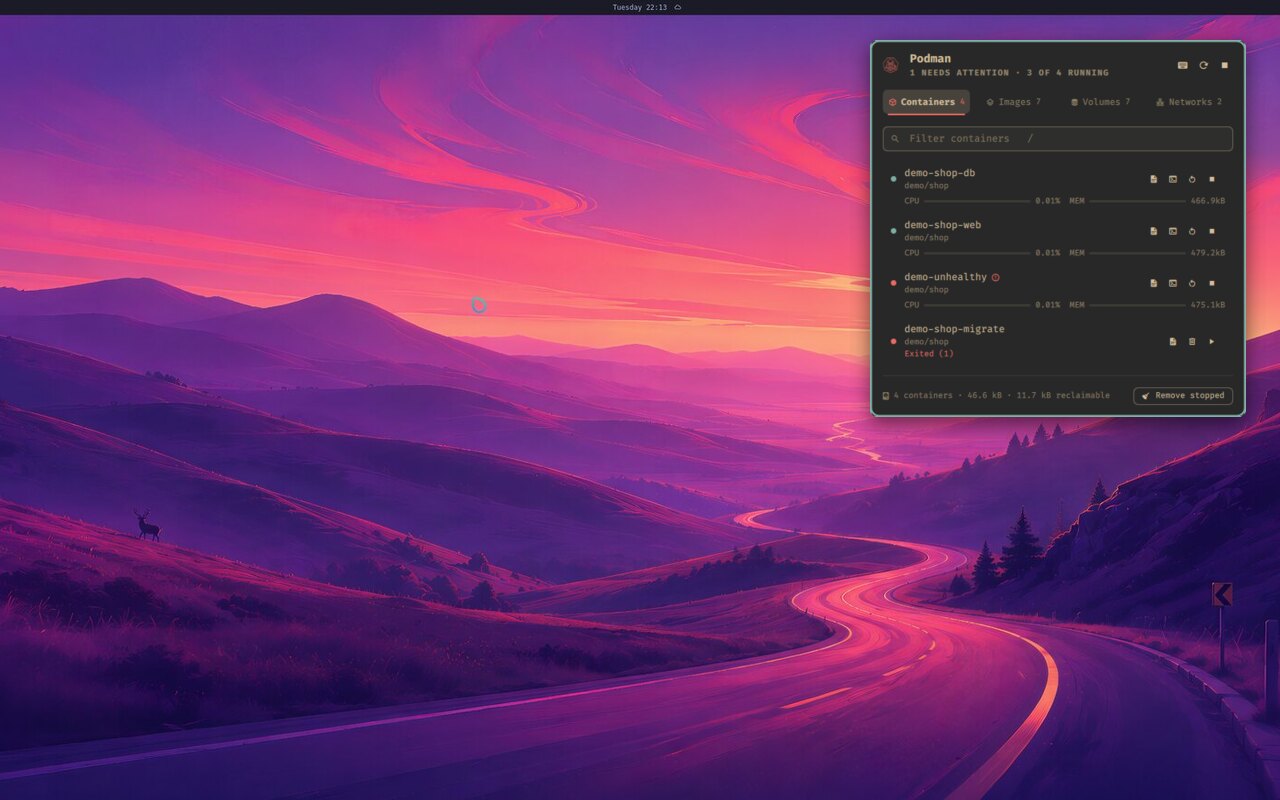
What it does. Containers, images, volumes and networks on four tabs. Start, stop and restart; follow logs; open a shell in a container; remove and prune, with a confirmation. The bar glyph shows when something needs attention.
When it’s there. It follows podman, not nixarchy. It comes on with the
podman row in the Services catalogue, or with Boxes, and is absent
where podman is off. nixarchy’s container engine is still rootless Docker, so
docker keeps meaning Docker.
GitLab pipelines
What it solves. Checking CI across many projects means a browser tab per project. This is one popup: every project you are a member of, nested groups included, with running pipelines first.
What it does. Projects → pipelines → stages → jobs, with no buttons, no
background daemon and no stored token. It uses glab, which nixarchy installs
with it. Run glab auth login once; until you do, the panel says so and stops
polling.
Not shown moving: until glab is authenticated the panel is one unchanging “authenticate first” message, which cannot honestly clear the recorder’s frame-diversity gate.
Herdr sessions
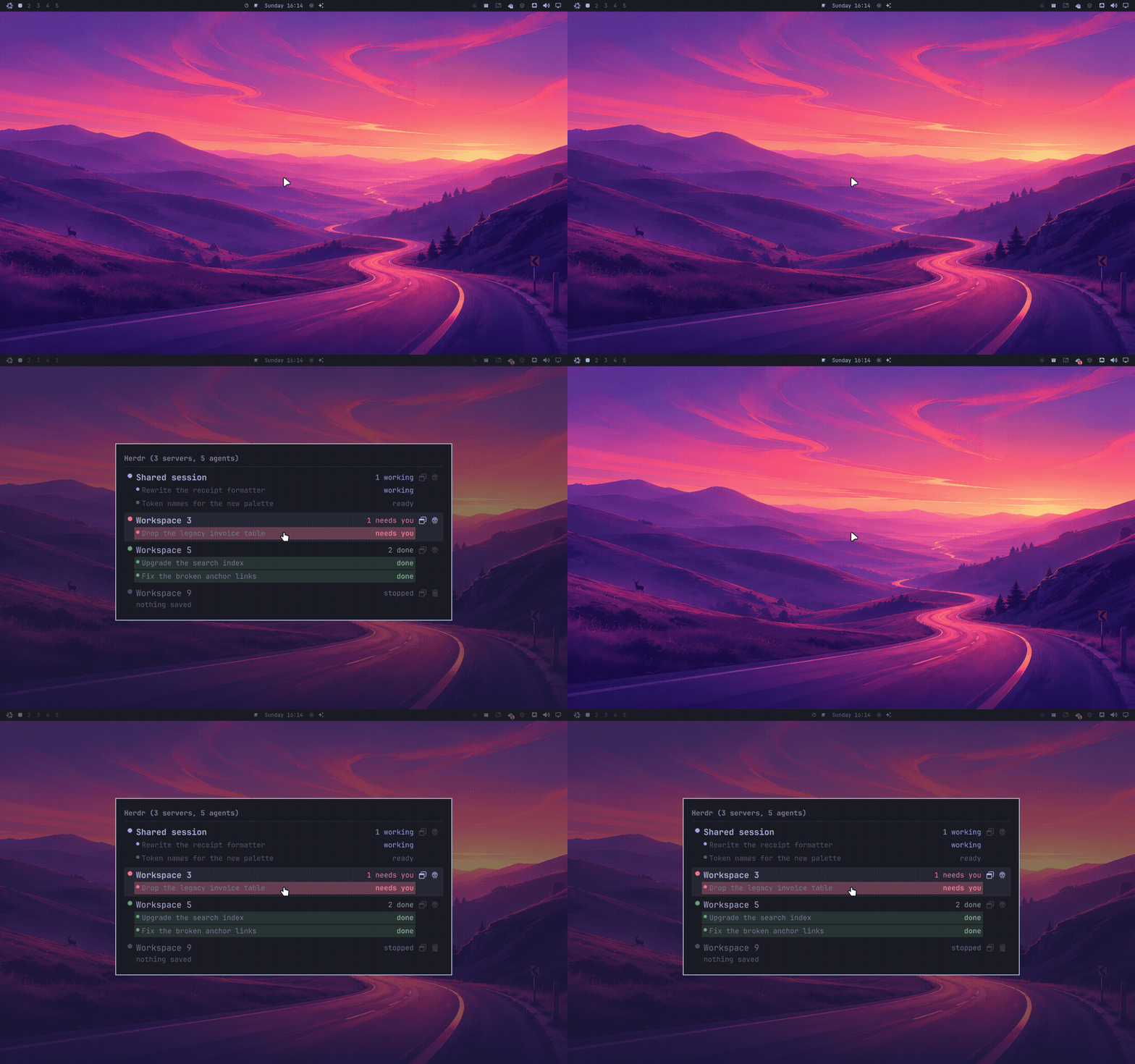
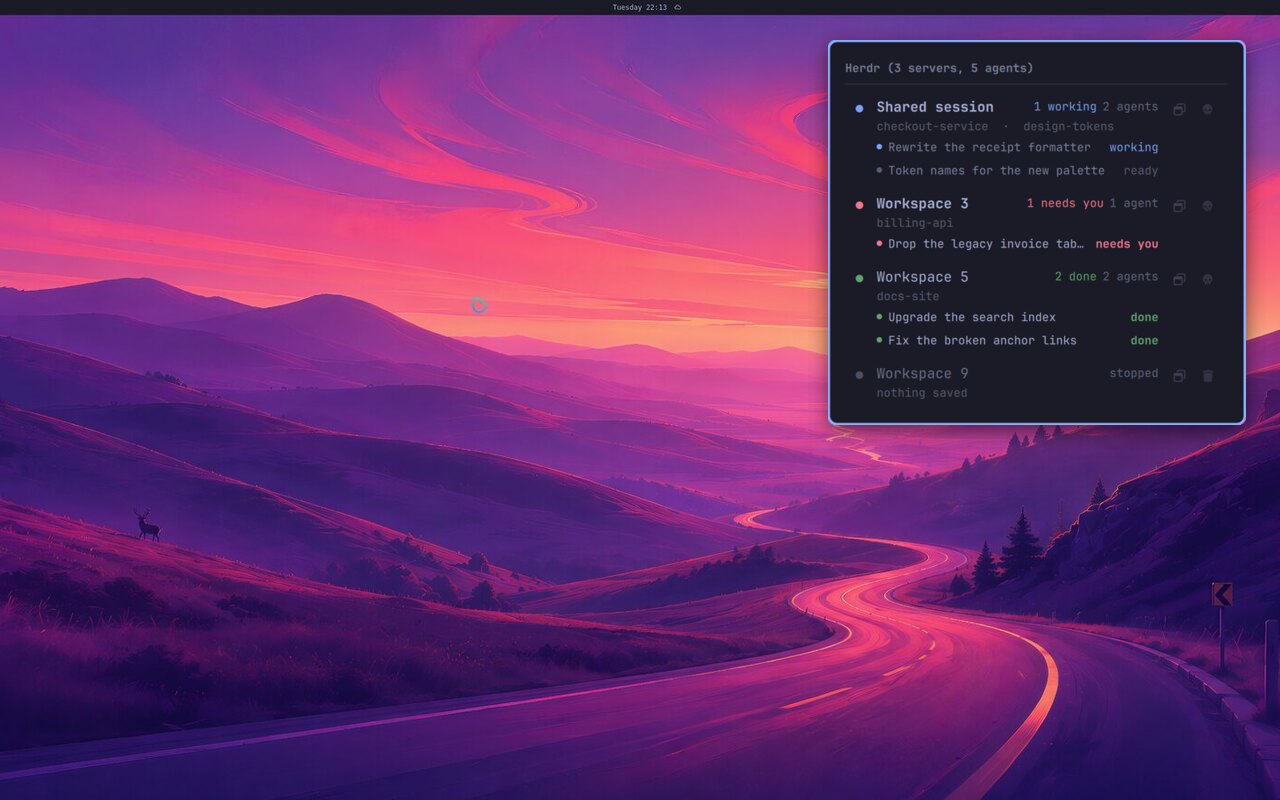
What it solves. Coding agents run inside herdr sessions, and without this you find out that one is waiting for you only by switching to its terminal. The bar tells you instead.
What it does. Your herdr sessions and the agents inside them, across
machines, not just this one. You see who is working, who is done, and who
needs you. Open a session, start a new one, or send an agent a prompt from
the popup. herdr itself comes with it from nixpkgs, so update it through
nixpkgs (herdr update cannot write to the Nix store), or put your own build
ahead of it on PATH.
MicroVMs
nixarchy-microvm · its own site
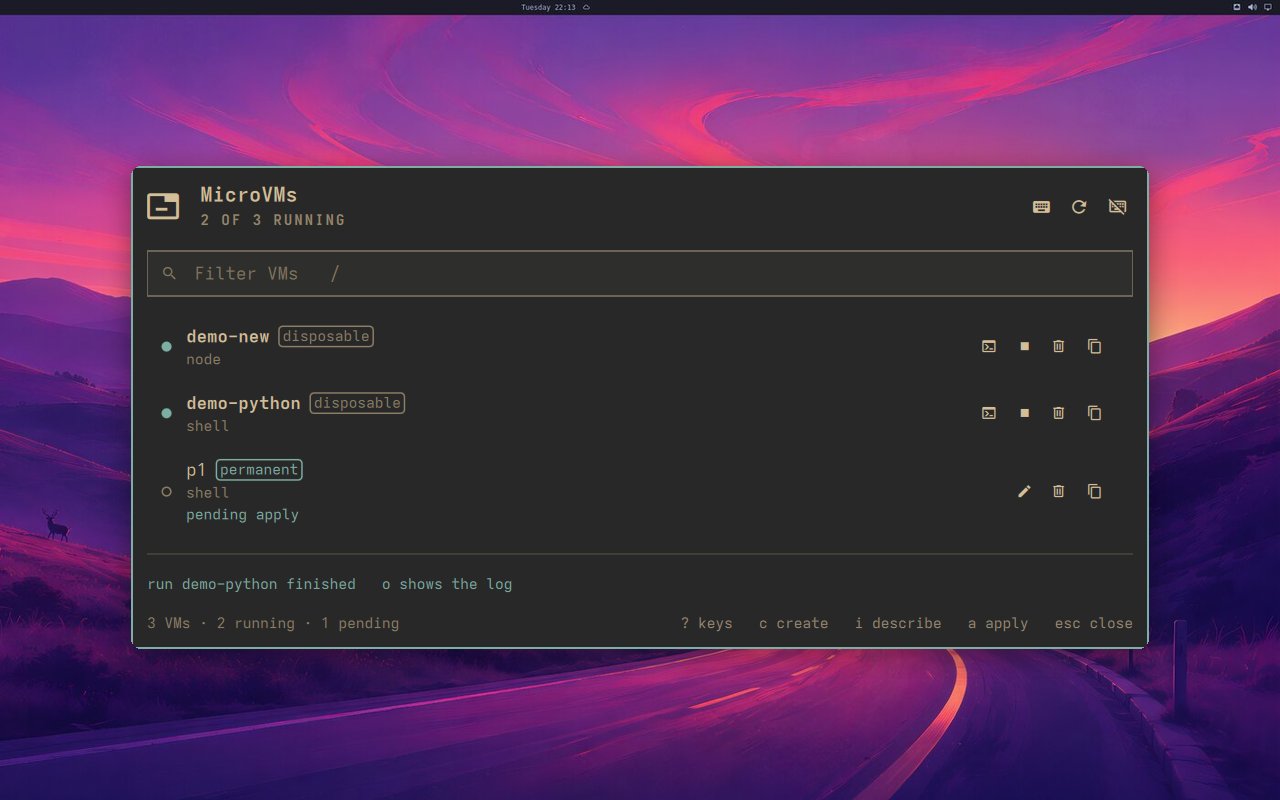
What it solves. nixarchy has two kinds of VM: disposable sandboxes
from nixarchy vm, and permanent machines you declare in your configuration.
They lived in two places. This puts both in one list.
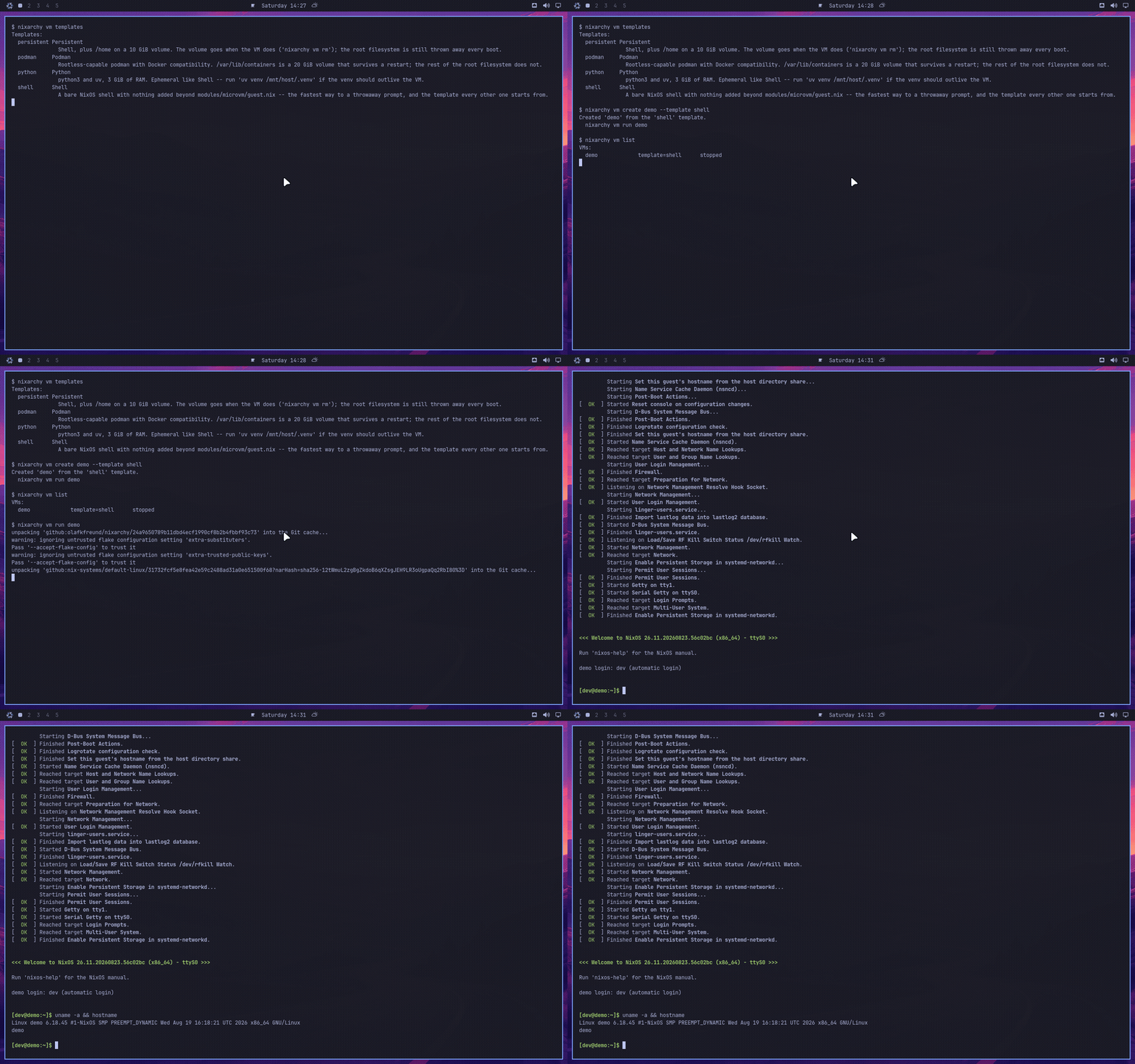
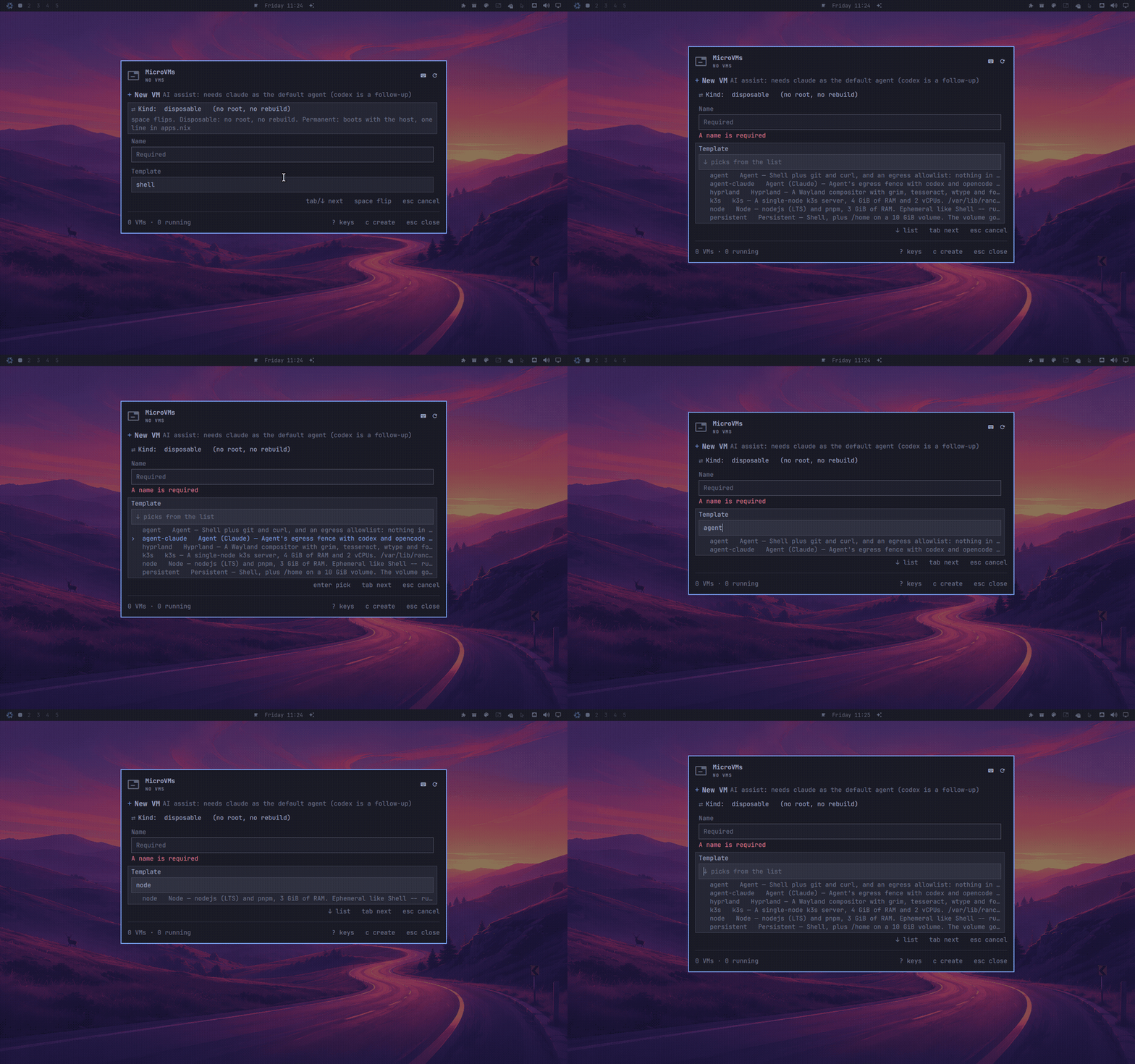
What it does. Create a VM from a template, run it in the background and
attach to its console later, stop it, or remove it. There’s optional help from
your AI agent to fill in the create form. It is Trigger ▸ Sandbox now,
and nixarchy vm is still there in a terminal.
Distrobox
nixarchy-distrobox · its own site
What it solves. Boxes are for software NixOS will not run, and
looking after them meant remembering distrobox subcommands. A multi-minute
image pull or upgrade also tied up a terminal.
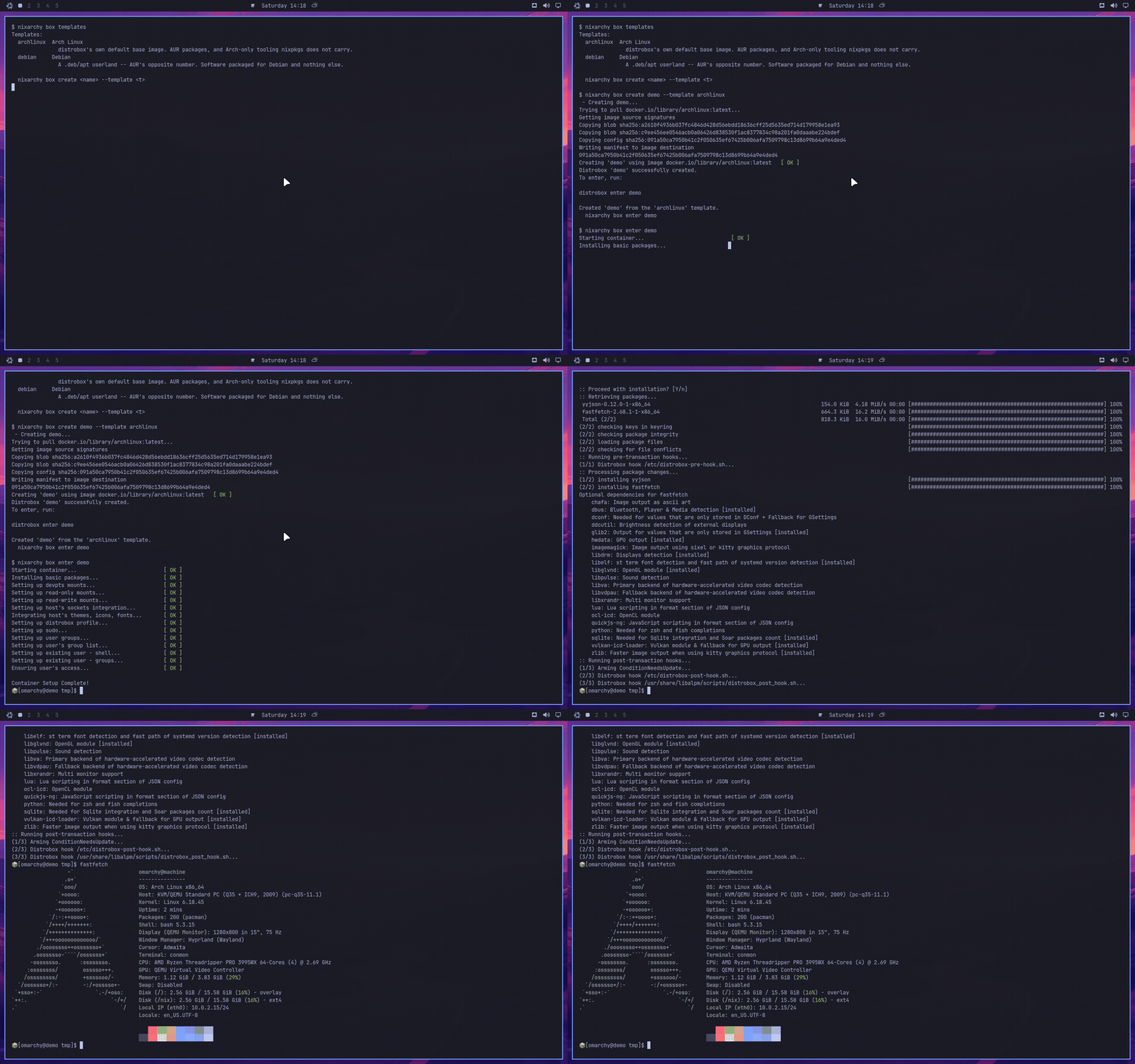
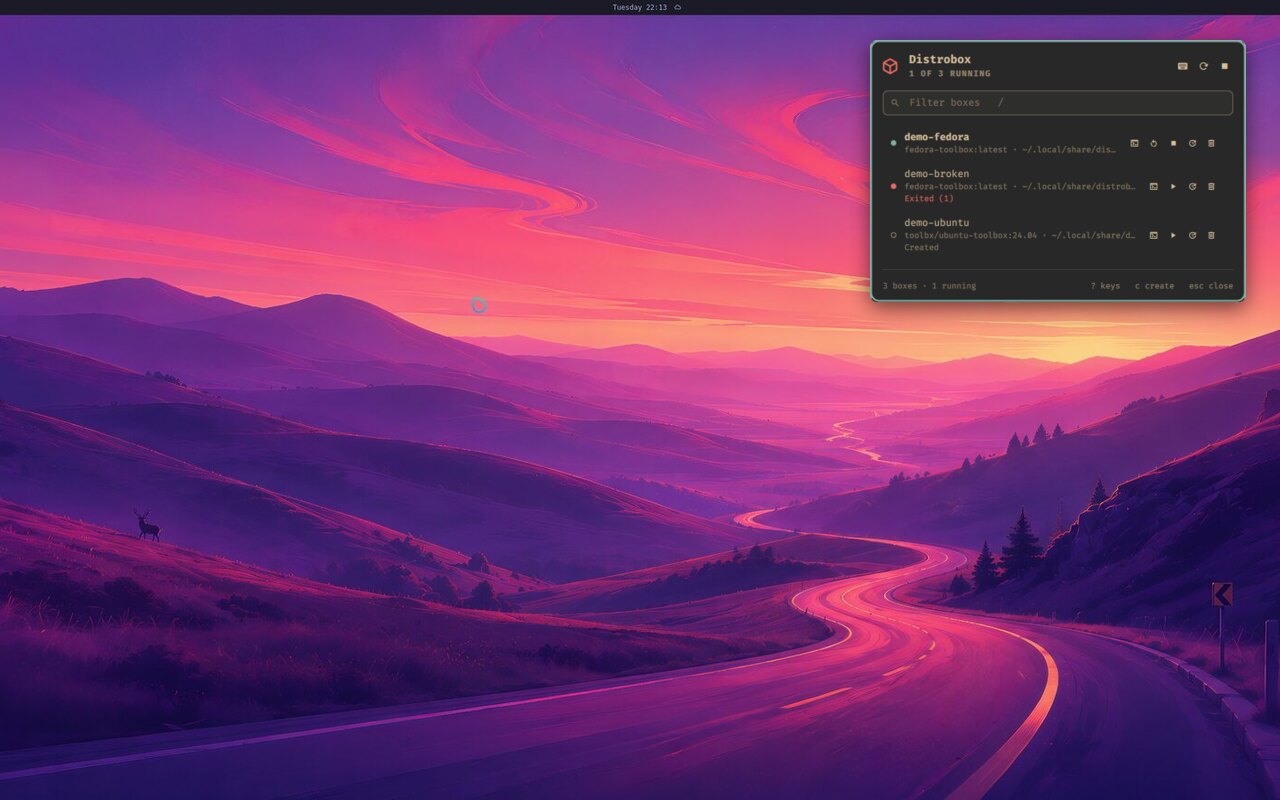
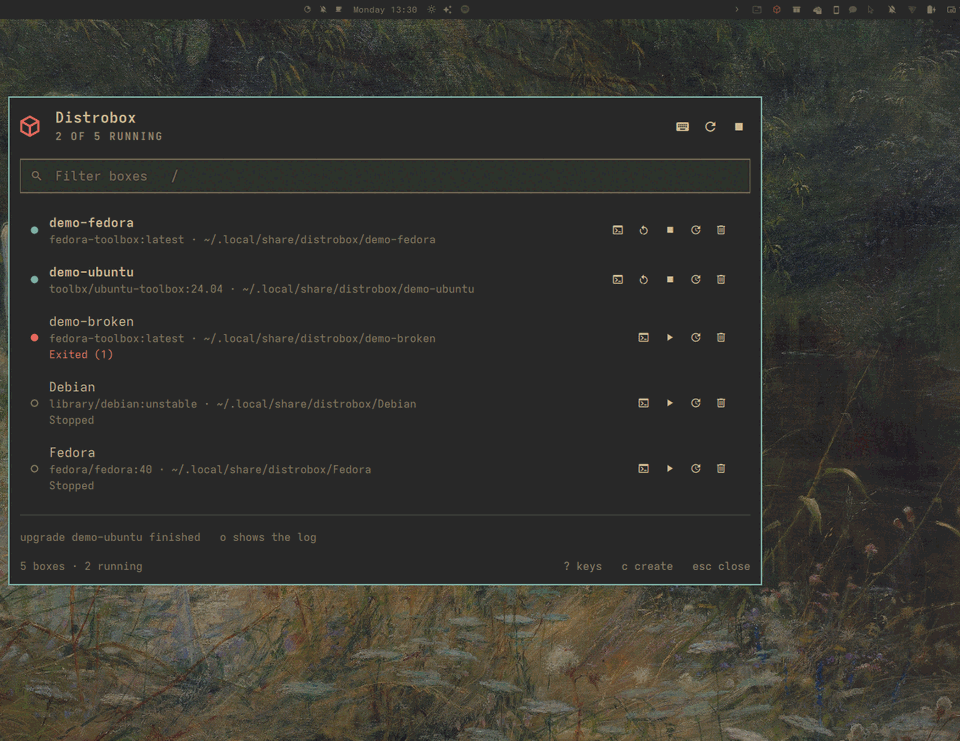
What it does. Every box with its image and home directory. Enter one in a
terminal; start, stop, restart, upgrade or delete it. Create a box from a form,
and watch create and upgrade stream into the panel. It is Trigger ▸ Boxes
wherever Boxes are on, and its templates are nixarchy’s own, from
/etc/nixarchy/box-templates.ini.
Dev environments
nixarchy-devenv · its own site
What it solves. Per-project environments were a
command and nothing else: nixarchy dev init scaffolded a project, and after
that every environment on the machine was invisible. Which folders have one,
which activate on cd, which have a database running — all of it lived in
your head or in ls.
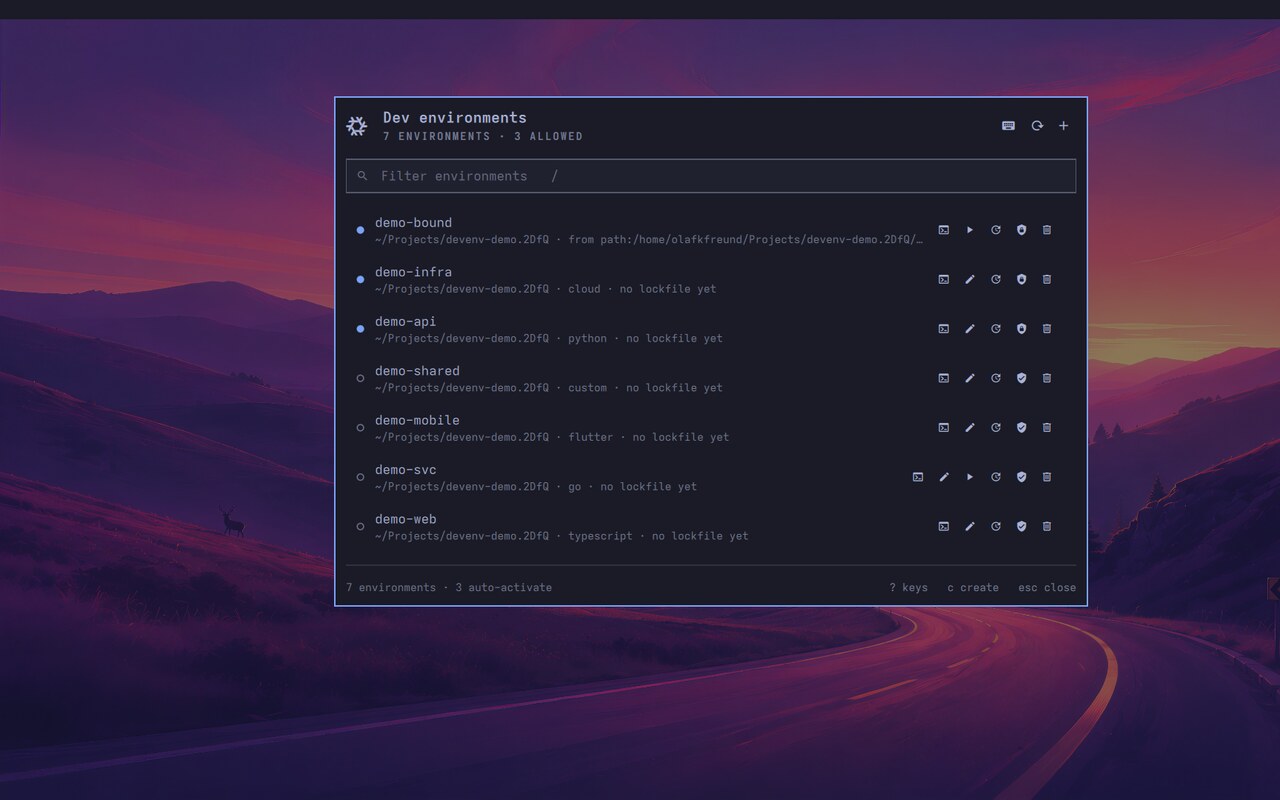
What it does. Every devenv project under your project roots, the ones you
allowed first. Directories bound to a configuration elsewhere with devenv
--from are listed too, reading from <source>; they have nothing of
their own to edit or delete, so removal offers only revoke. Enter one in a terminal (devenv shell), edit its devenv.nix,
start and stop its processes, update its lock, allow or revoke it, and remove
it in steps from revoke to deleting the folder. Create a new project from
twenty-seven templates — languages, web frontends and backends, Jupyter, machine learning and AI, Flutter, Android, Omarchy plugins, NixOS configurations, and cloud
projects for AWS, Azure, GCP and five more. It is Apps ▸ Dev environments
or Super+Alt+E wherever the devenv service is
on, and nixarchy dev … is the same tool in a terminal.

GitHub Actions
What it solves. The same as GitLab pipelines, for GitHub: CI across your repositories without a browser tab for each.
What it does. Repositories → workflow runs → jobs → steps, with running
workflows first, through gh, which nixarchy installs with it. Run
gh auth login once; until you do, the panel says so and stops polling. Its
keys are on Super+Ctrl+Alt+A.
If you installed it by hand before, remove your copy before switching:
rm -rf ~/.config/omarchy/plugins/olafkfreund.github-actions. nixarchy won’t
replace a real directory. It stays enabled, and the managed copy takes over.
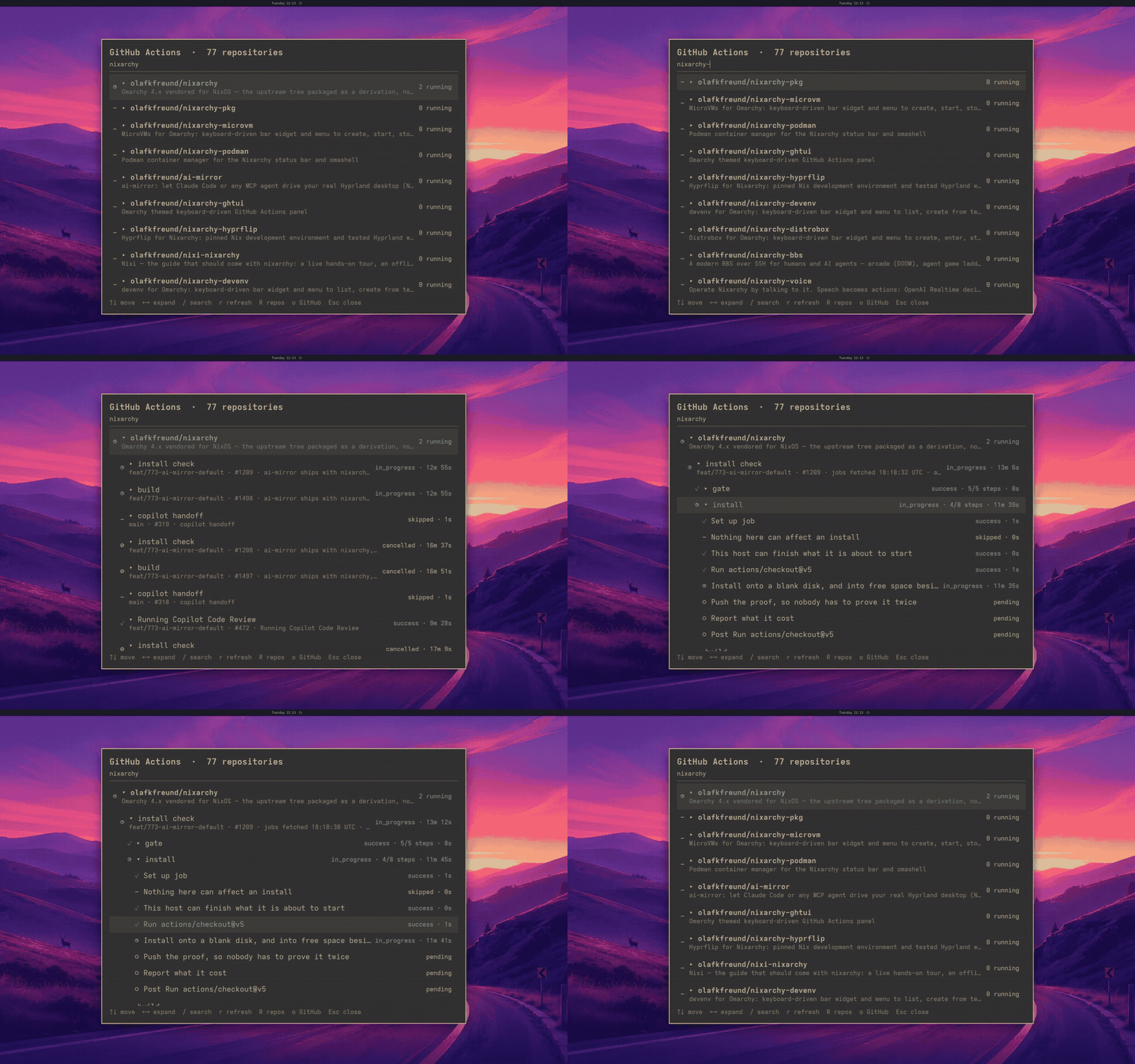
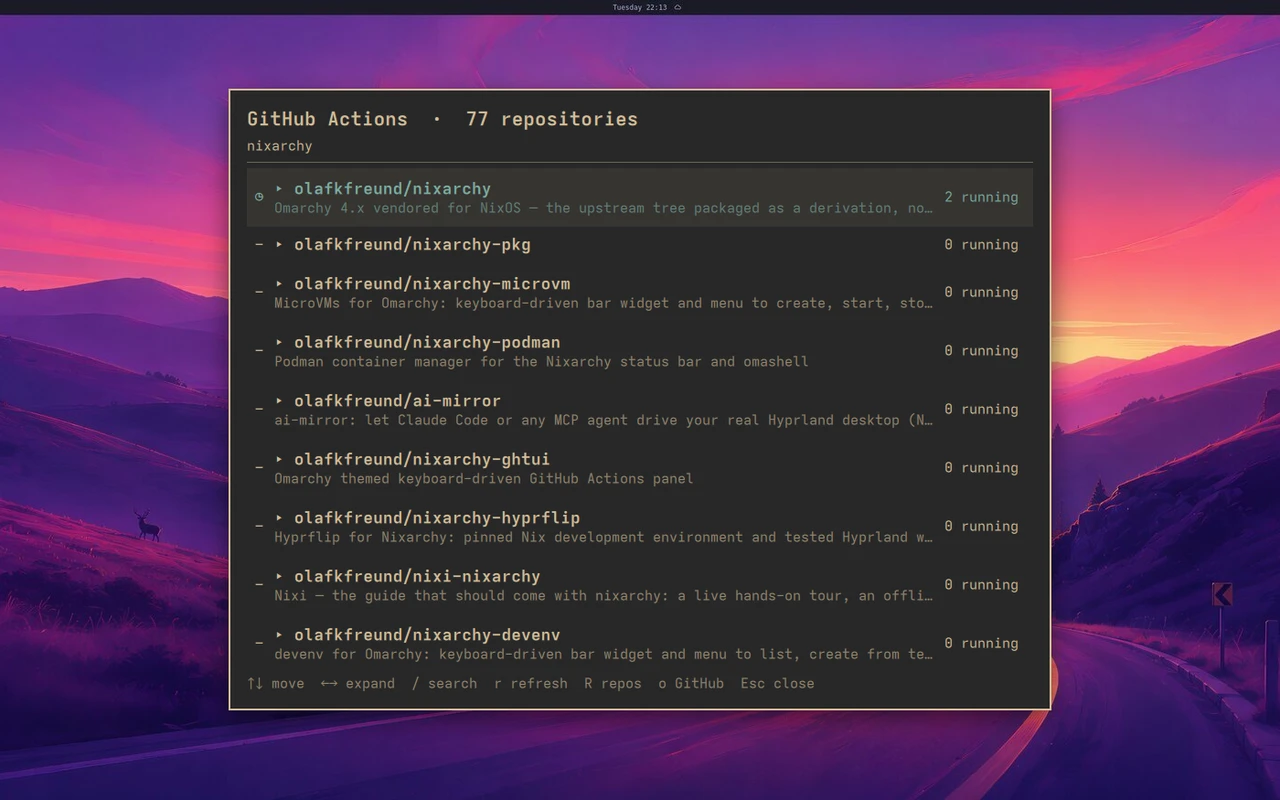
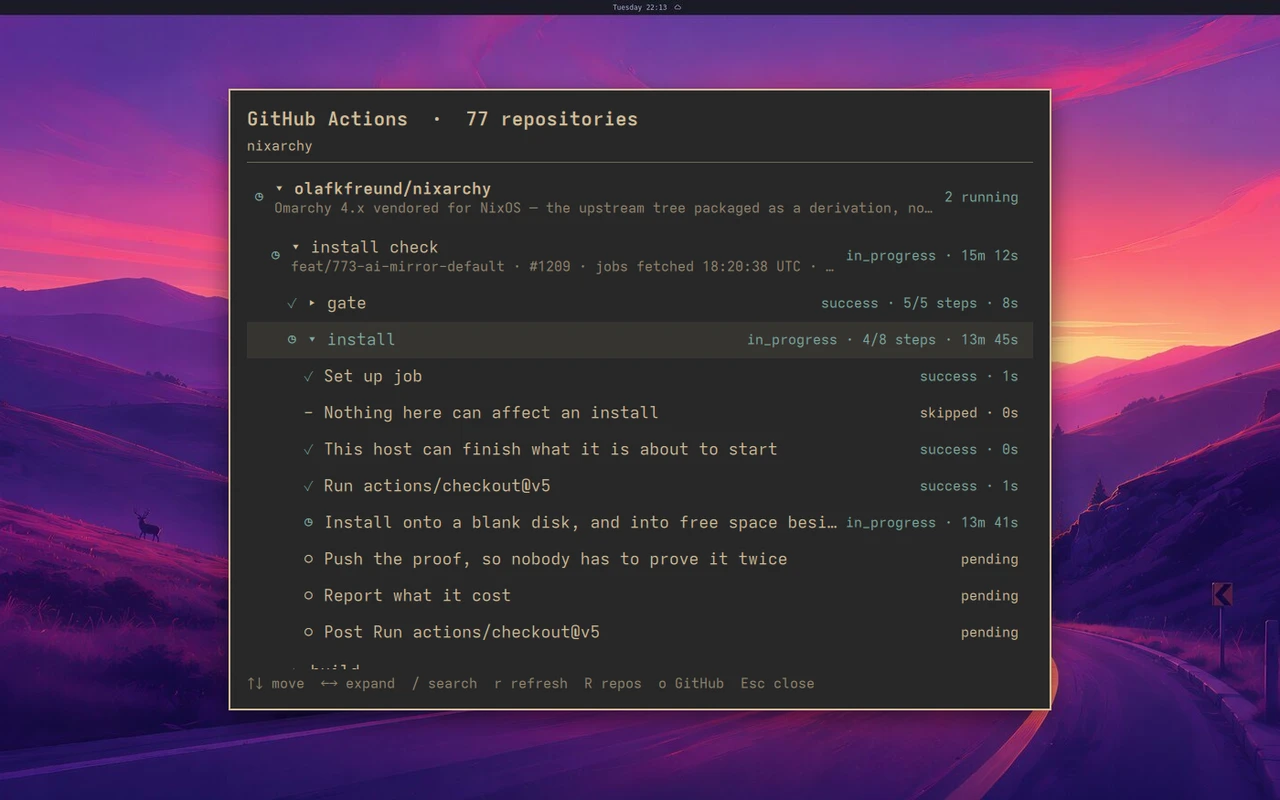
Recorded on an authenticated desktop, in Gruvbox, showing public repositories only.
Plugin Browser
nixarchy-plugin-browser · its own site
What it solves. The Omarchy plugin marketplace is written for Arch. Plenty
of its plugins call pacman or yay, or read files that don’t exist on
NixOS. They install cleanly and then break, and upstream’s Add Plugin only
asks for a Git URL: it can’t tell you any of this before the plugin is on
your desktop.
What it does. Setup ▸ Plugins ▸ Add Plugin (or Super+Alt+U) opens a searchable list of the whole marketplace, with each plugin’s preview image. Open one and it is audited first, in a bubblewrap sandbox, at a pinned commit. You get two verdicts:
- Security: what it runs, and whether that needs a look;
- NixOS: likely fine, needs review, or blocked, with the file and line of each finding.
i installs it disabled, at the commit that was audited. You turn it on
in Setup ▸ Plugins when you’re ready. c copies the install command, o
opens its repository, and ? lists every key.
Asking your agent about a finding. e (explain) and f (fix) hand the
audit to your default agent, the one nixarchy ask uses, in a terminal:
- explain proposes changes and edits nothing;
- fix edits a disposable copy, shows you the diff, re-audits it, and asks whether to install it, keep the patch, or discard it.
The agent runs with its auto-approve flags on a copy of untrusted code.
The terminal says so and asks first (the answer defaults to No). A prompt
injection hidden in a plugin could still make the agent run commands as you
while it works. If that isn’t a risk you want, don’t use e and f.
Adding by URL. Setup ▸ Plugins ▸ Add Plugin from URL is upstream’s prompt, unchanged. It installs whatever the URL points at, without the audit.
The network. The catalog (plugins.omarchy.org, cached for an hour) and the
preview of each plugin you open are fetched when you use the panel, and
never otherwise. Previews can be turned off with {"previews": false} in
~/.config/nixarchy-plugin-browser/config.json.
After the switch that brings it in, log out and back in once. Until you do, Add Plugin still opens the old prompt: the menu is read from the tree your session started with.
If you installed it by hand before, remove your copy before switching:
rm -rf ~/.config/omarchy/plugins/io.github.olafkfreund.nixarchy-plugin-browser.
nixarchy won’t replace a real directory. It stays enabled, and the managed
copy takes over.
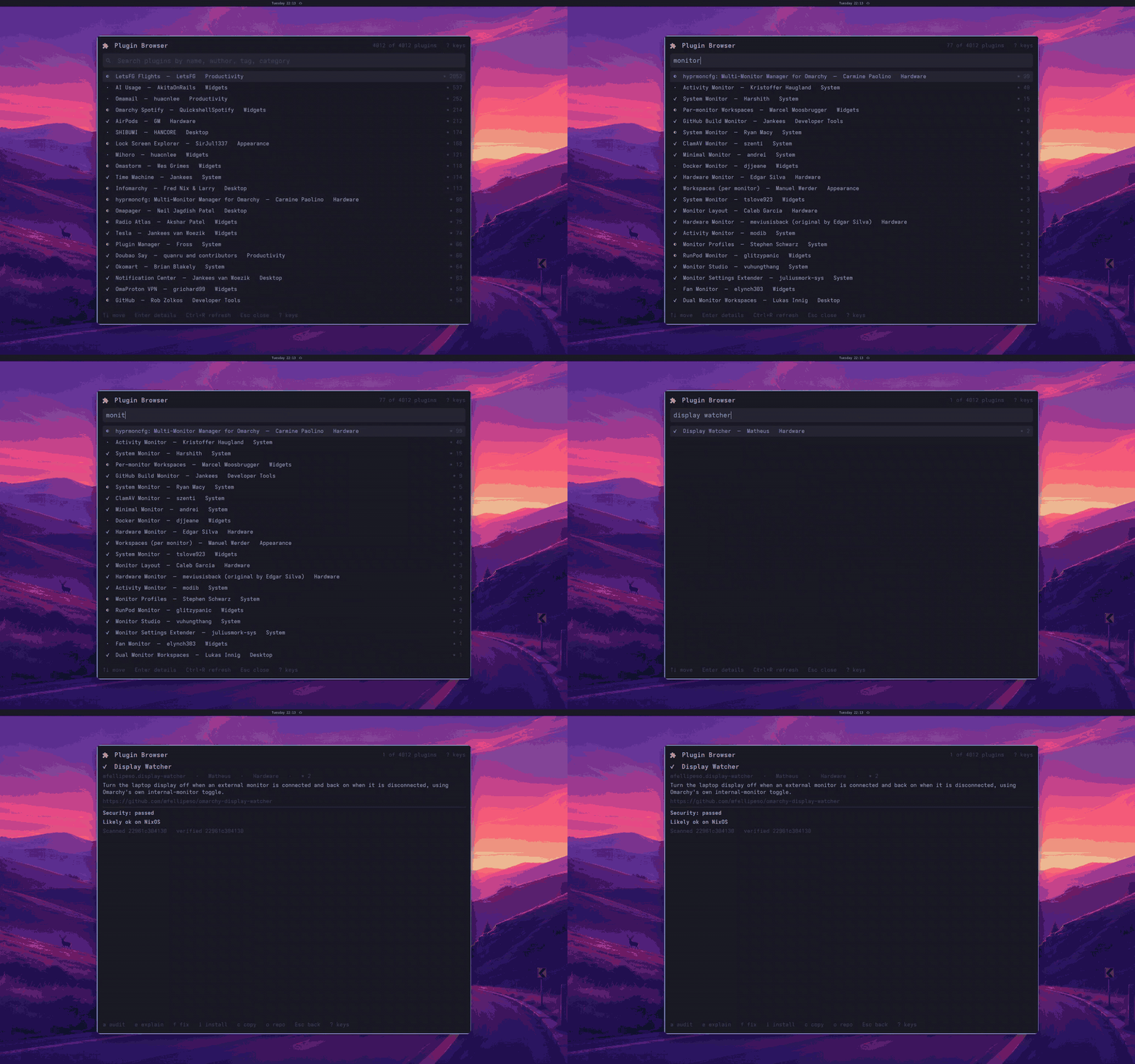
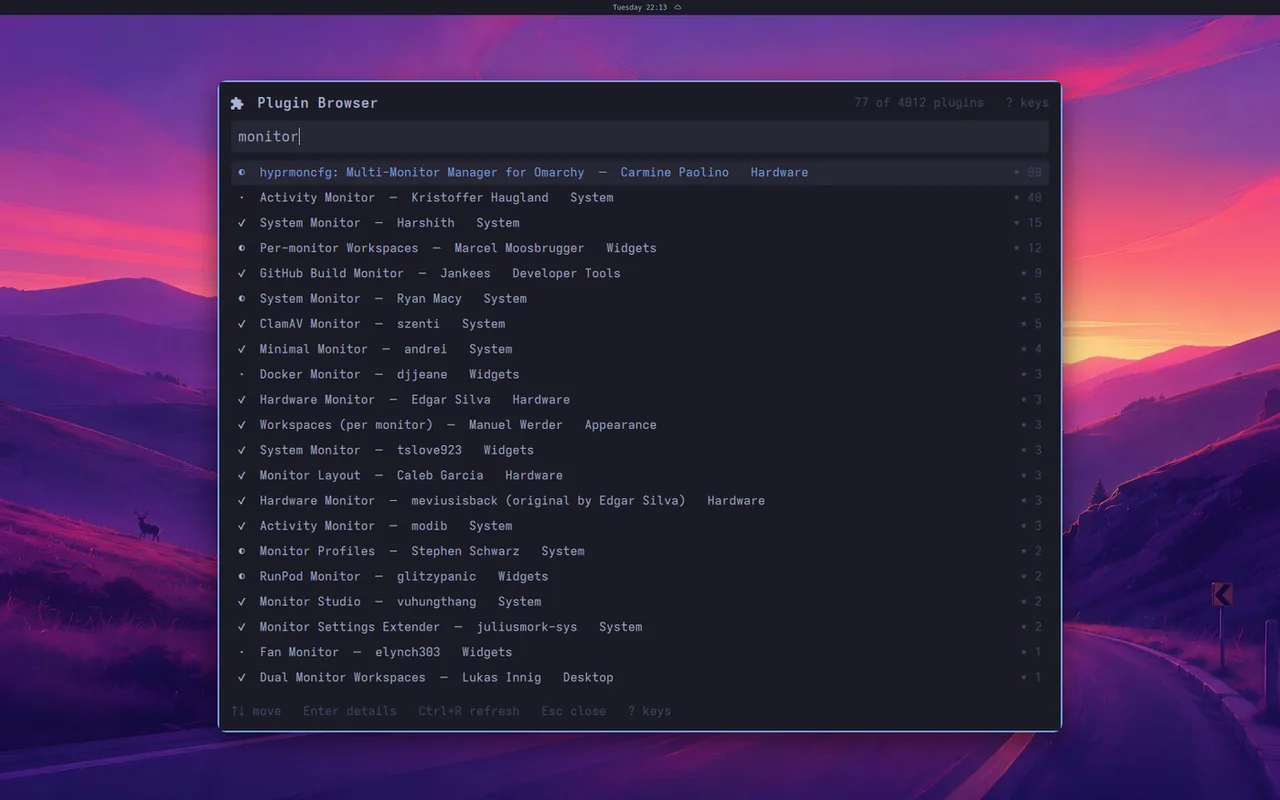
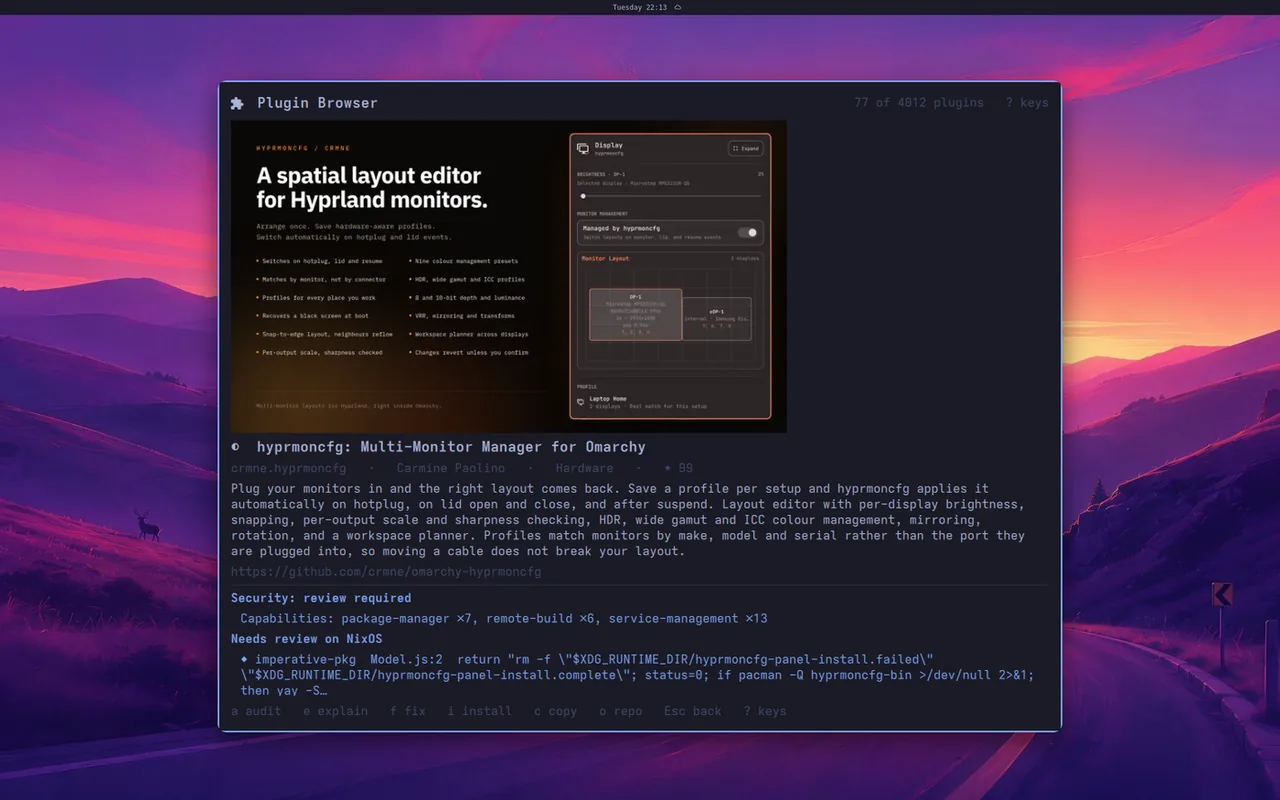
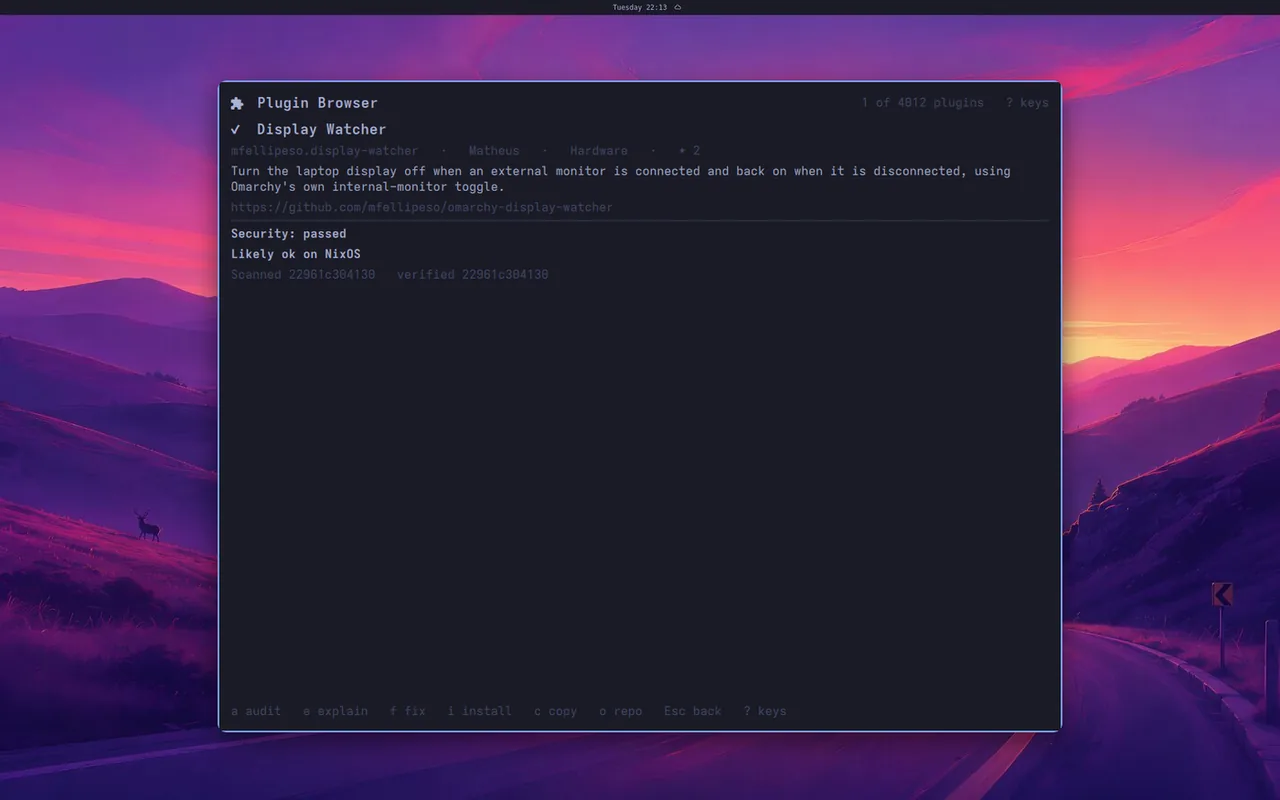
Recorded on a real desktop in Tokyo Night, composed onto the default wallpaper. The plugins shown are public marketplace entries.
Rebuild
Shipped with nixarchy itself, in pkgs/rebuild-panel/ – the only panel here
whose source is in the nixarchy repository, because it and nixarchy apply
--detach are two halves of one thing.
What it solves. Applying a change used to open a floating terminal: a tty prompt, a progress view drawn in escape codes, and a window you could not close without wondering whether you had just killed the rebuild. Closing it did kill it, before the supervised unit existed.
What it does. Install -> Apply changes opens it instead. It says what it
is about to do and starts nothing until you press Rebuild now; then it
shows the elapsed time and the tail of the log while the rebuild runs as the
nixarchy-rebuild user unit. Close it and the rebuild carries on; open it
again and you are back on the same one – including a rebuild you started
yourself in a terminal. If it fails, it keeps the exit code and offers
Copy log and Open full log in terminal.
No cancel button, deliberately. Stopping a switch part-way can leave the system half-changed, so it is not one keypress away. Once the log reaches “Activating”, let it finish and roll back afterwards if you need to.
Its bar icon appears only while a rebuild is running or has failed, so it costs nothing in the bar the rest of the time.
ai-mirror
ai-mirror · on by default
What it solves. A coding agent can drive a browser or a terminal, but not the dialog, the drag or the unlabelled button on your real desktop. ai-mirror gives an agent eyes and hands on your actual session, and takes them back with one keypress.
What it does. A small MCP server and a mark in the bar (right). It is
installed on every nixarchy machine, and no agent is connected to it until
you set programs.nixarchy.aiMirror.mcp = true;. Turning that off again takes
the connection back out of Claude Code, Codex and opencode (and pi, where it is installed and at least 0.99.2).
The mark says what an agent is doing.
| the mark | means |
|---|---|
| dim | nothing: agent control is off |
| the theme’s accent colour, steady | an agent is watching: reading the screen, the clipboard or the accessibility tree. It cannot type or click. |
| red, pulsing | an agent controls the keyboard and mouse |
An agent asks, and you answer. When an agent wants control, a dialog asks you on screen. Nothing is granted until you press yes, and an unanswered request lapses after 30 seconds. Super+Shift+Escape, or a click on the mark, takes control back at any moment. A grant also ends by itself after ten minutes with no input, and when the agent that asked goes away.
What the yes does not cover. An agent that reaches ai-mirror through the
connection above cannot answer its own request. An agent with a shell on your
account can. It can run ai-mirror control confirm itself, and no prompt
inside your session can stop that. This is a deliberate choice, not an
oversight: the agent already runs as you. Run an agent you do not trust in a
sandbox or a MicroVM instead, where your desktop is not in reach.
Every grant is logged with who asked, so a self-grant shows up afterwards.
If you have turned the mark off and your bindings.lua predates the kill
switch, a grant made that way has nothing on screen to stop it. It still ends
after ten idle minutes, and ai-mirror control off in any terminal ends it at
once.
Watch the nixarchy desktop showcase, recorded by an agent through ai-mirror.
Runtime themes
omatheme keeps the active palette in sync across the supported desktop and terminal targets. On NixOS, Stylix may continue to provide the declarative application template while omatheme switches the generated runtime files immediately.
Turn it off with programs.nixarchy.defaultPlugins.omatheme = false;.
Menu
nixarchy-menu · installed, off by default
What it solves. Omarchy’s menu is a tree you walk: Install, then a submenu, then a row. That is fast once you know where a thing lives and slow while you are learning. A palette is the other shape – type what you want and let it find the row.
What it does. Replaces the Omarchy menu with a Raycast-style palette over
the same rows. It is a clone of omarchy.menu, so it takes that plugin’s slot
rather than adding a second button. When nixarchy turns it on at first login
(menu.default = "nixarchy"), it first turns off any other clone of the same
menu, because two plugins claiming the menu is a fight the first one
alphabetically wins, silently. The Setup row does not: if you have another menu
clone on, turn that off first.
It is installed but off (#1283): a new machine starts on Omarchy’s own menu. Switch at any time, with no rebuild, in Setup ▸ Defaults ▸ Menu: Nixarchy turns the palette on, and Omarchy turns it off and puts the stock menu back in its place. A machine that already had it on keeps it until you switch.
To start new machines on the palette, in your NixOS configuration:
programs.nixarchy.menu.default = "nixarchy"; # turned on at first login
To stop nixarchy installing it at all, in the user’s Home Manager
configuration (home-manager.users.<you>):
programs.nixarchy.defaultPlugins.menu = false;
The search terms the palette matches come from nixarchy’s own menu data (#961), so the Ask topics answer to symptoms – “slow”, “hacked”, “disk full” – rather than only to their labels.
Hyprforge
Hyprforge by Aziz, via nixarchy-hyprsettngs · MIT · on by default
What it solves. Changing how the desktop looks and behaves – gaps,
borders, blur, animations, input, a rule for one app – means editing Lua under
~/.config/hypr and reloading to see whether you got it right. Nothing shows a
change before you commit to it, and nothing undoes one.
What it does. A Hyprland studio: a live scale model of your screen, theme
palette colours that follow omarchy theme set, a bezier and spring curve
editor for animations, per-app rules, profiles, history, and every Hyprland
option. Everything previews on your real windows and is checked by Hyprland
before it is saved. Open it from Super+Space ▸ Hyprforge, or
omarchy-shell hyprforge toggle.
Where your settings go. Hyprforge saves to ~/.config/hypr/hyprforge.lua,
and nixarchy’s session loads that file (#1059). You never need its Connect
button. On a machine installed before Hyprforge arrived, the button still
offers itself; clicking it is harmless and changes nothing.
Turning it off – Setup ▸ Plugins, or
programs.nixarchy.defaultPlugins.hyprforge = false;
– removes the panel, but keeps what you saved applied. Delete
~/.config/hypr/hyprforge.lua to go back to Omarchy’s own settings.
Gliff-Manager
Gliff-Manager by Gavin Nugent, via
our NixOS-ready fork · MIT ·
on wherever nixarchy installs gliff (preinstalls, unless gliff is in preinstallsExclude)
What it solves. gliff connects to a machine you name, but nothing tells you beforehand whether that machine is ready: is ssh allowed, is gliff installed there, is anyone logged in to Hyprland, is a screen plugged in.
What it does. A bar widget listing your gliff machines. It checks each one
over ssh, picks headless or mirror per machine, explains what is wrong, and
connects. Open it from the bar, or Setup ▸ Remote desktop ▸ Manage gliff
machines, or omarchy-shell nixarchy.gliff-manager toggle.
What the fork changed. Upstream assumes Arch. The fork reads gliff’s version
from gliff, takes the channel from /etc/os-release, finds NixOS’s wrapped
process names, runs no package manager, and does not offer the Arch session fix
on NixOS.
Turning it off – Setup ▸ Plugins, or
programs.nixarchy.defaultPlugins.gliff-manager = false;
It is also absent when you remove gliff with
programs.nixarchy.preinstallsExclude = [ "gliff" ];.
Had upstream’s copy? Remove it with
omarchy plugin remove nosignal.gliff-manager; both share
~/.config/gliff-manager/.
Short names. Its short tab names add an Include line to ~/.ssh/config.
If ~/.ssh/config is managed by Home Manager (a link into the Nix store),
turning short names on refuses with a message and changes nothing; full names
keep working.
Voice
What it solves. Operating the desktop by talking to it. It turns voice into
actions, not only text; dictation (Voxtype) stays for typing. Turn that
on with dictation and hold F9, or toggle it with Super+Ctrl+X.
What it does. A wake word or toggle key is heard locally, whisper.cpp
transcribes it on your CPU, a model you have signed in to decides, and a local
voice speaks the reply. What you do often becomes an action: a named recipe
you say (“run dev setup”), pick in Voice ▸ Actions in the menu, or run with
omarchy-voice action run. The easy way to make one is to do the thing by voice,
then say “make that an action called …”. She reads the recipe back and saves it
when you confirm. A routine is an action on a schedule, run as a systemd
user timer, and its result arrives as a notification. Commands run in her own
terminal session, never typed into yours, and a command that fails is reported
as a failure.
Why it’s opt-in. It needs a model account, and it sends what you ask about (including screen and clipboard content) to that model. It is 7.2 GiB with the whisper and Piper models, which are in the package. Every step goes through a policy gate: anything risky waits for your yes, a step can be approved once for good, and a deny rule can never be approved. Notification logging, the wake word and desktop control all start off.
Turning it on. Find Voice in Install ▸ Search and apply it, or set
programs.nixarchy.voice.enable = true.
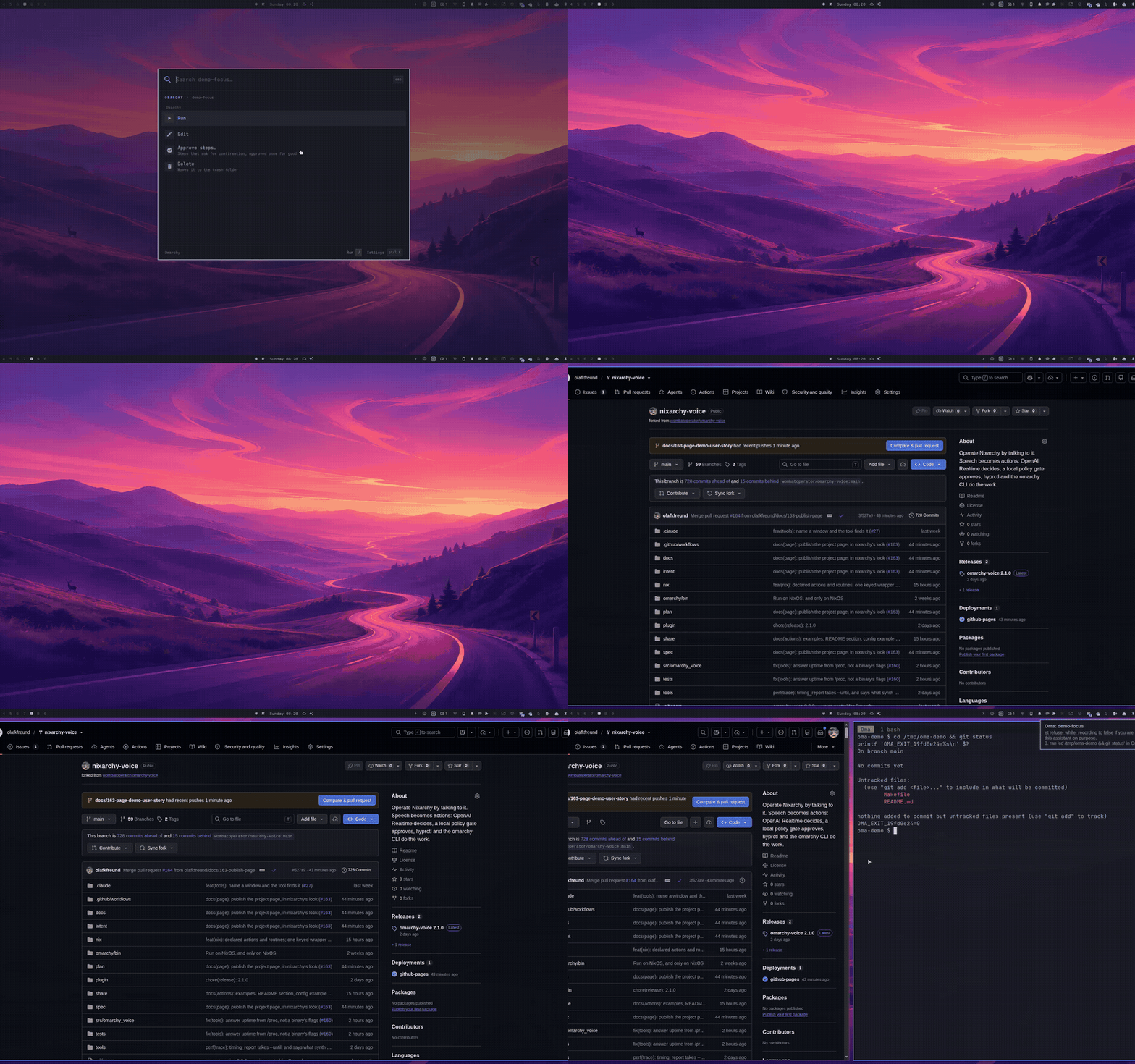
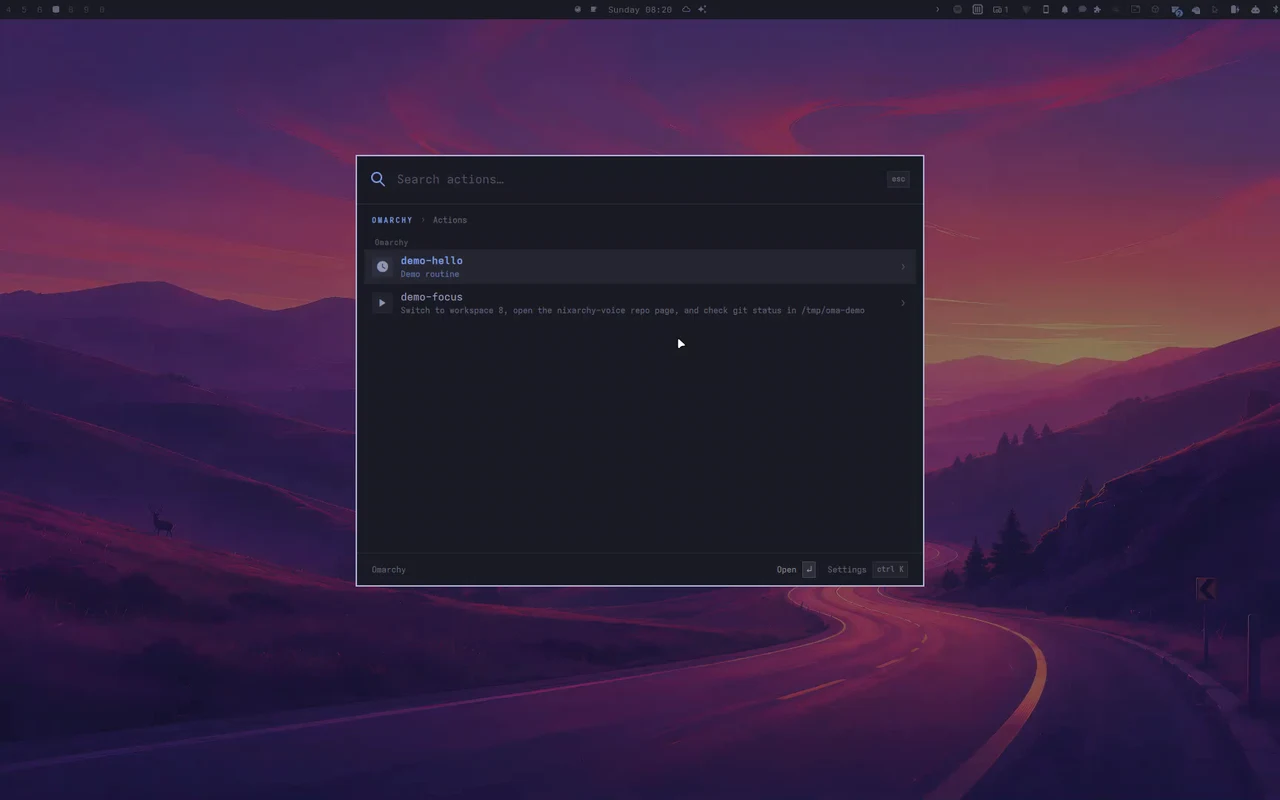
With sound, speech included: the three-minute recording on the plugin’s own site.