Getting Started
Omarchy ships as an ISO: boot it, answer a few questions, and a machine comes out the other end. nixarchy does that now too — and it is also still a flake you can add to a machine that already runs NixOS. Two ways in, and which one you want depends on whether the drive is blank.
nixarchy is in active development, and you should expect to hit problems. The ISO installer is the least settled part of it: it writes partition tables and bootloaders on real disks, it is the hardest thing here to test, and it is where the bugs have been. Try it on a spare machine or a VM, and back up anything on the target disk.
If you already run NixOS, the flake route is the mature one. Adding
nixarchy.nixosModules.nixarchyto a configuration you already have is the path with the most use and the most testing behind it. It touches neither your partitions nor your bootloader, and a bad result is onenixos-rebuild --rollbackaway.Everything here is being worked on and tested continuously. Please report what you hit —
omarchy bug-reportcollects the useful details for you.
The ISO
Two images are published with each
release: a net image of
about 1.6 GB that downloads the desktop while it installs, and an offline
image of about 6 GB that carries it. The offline one is split into .part-*
files because GitHub refuses a single asset over 2 GiB; the release notes give
the one command that joins them.
Or build either yourself:
nix build github:olafkfreund/nixarchy#iso
sudo dd if=result/iso/nixarchy-*.iso of=/dev/sdX bs=4M status=progress oflag=sync
On Windows or macOS, how you write the stick matters, and the way it fails
is at boot with no explanation —
the ISO in depth
has the detail, including why Rufus’ recommended answer to its ISOHybrid
question is the wrong one for the offline image. On Linux, dd as above has no
such trap.
Boot it. There is no boot menu and no login prompt — the installer is what comes up, and it asks the same questions Omarchy asks, in the same order.
1. Keyboard
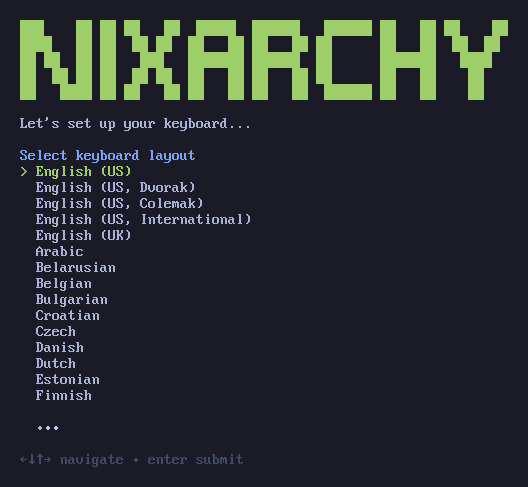
Forty-five layouts, English variants first. Not the several hundred files under
share/keymaps — mod-dh-ansi-us-fatz-wide is not a thing to put in front of
someone who has just booted a disk.
2. Your account
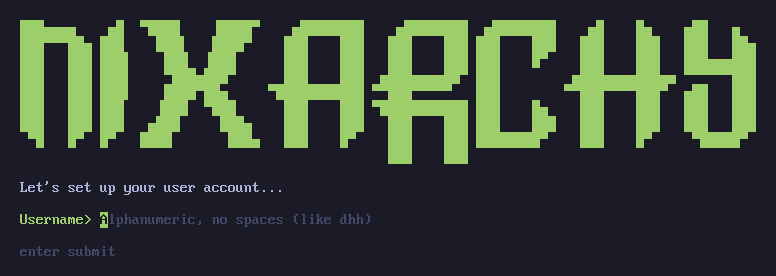
One password serves your user, root and the disk. That is upstream’s choice and it is the right one: the passphrase you type at boot is the one that logs you in, so there is nothing extra to remember.
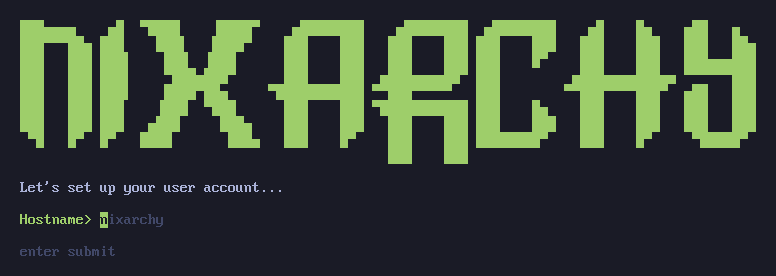
3. Hostname
4. Timezone
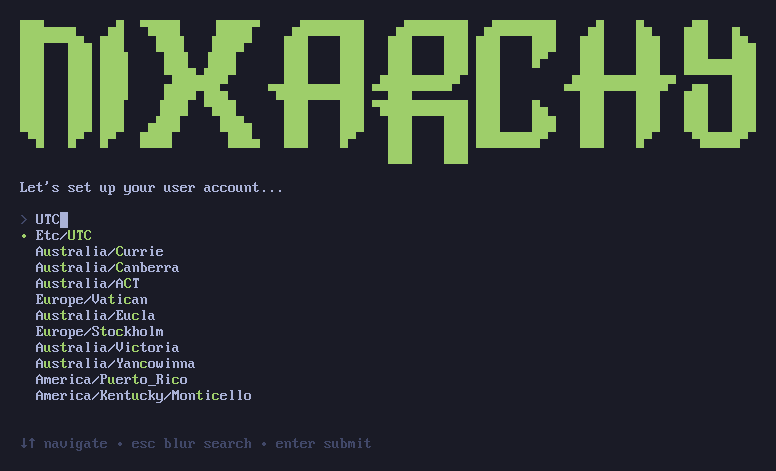
Type to filter. Return with nothing typed accepts UTC.
5. The disk
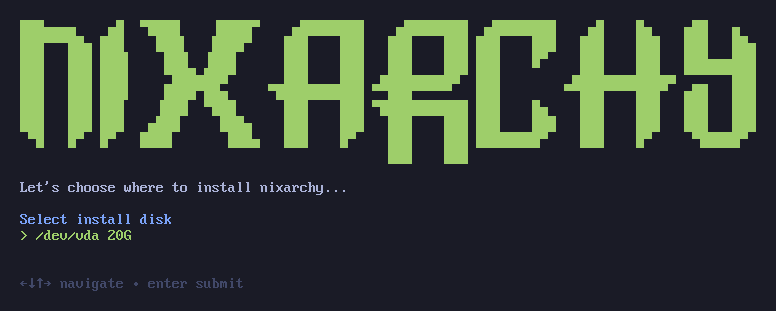
Only disks big enough to hold a desktop, and never the medium you booted from.
Anything under 8 GiB is left out — as are floppy controllers and compressed RAM
devices, both of which lsblk cheerfully calls a disk.
6. Encryption
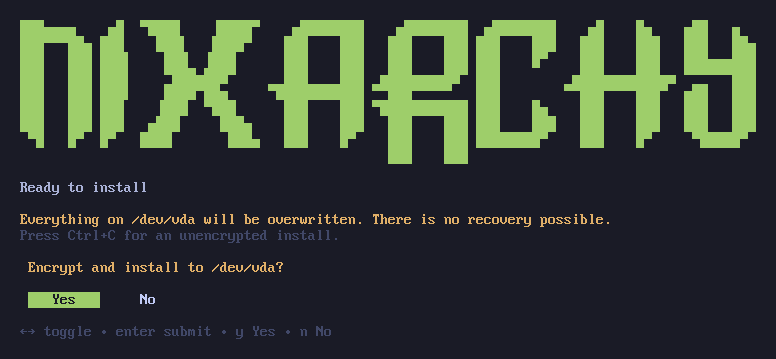
This is the destructive step. Encryption is the default and Ctrl+C is the way out of it — the safe answer is the one you get by doing nothing. Answering No aborts rather than installing unencrypted, because “no” to a question about overwriting a disk should never mean “do it anyway, differently”.
7. Check it over
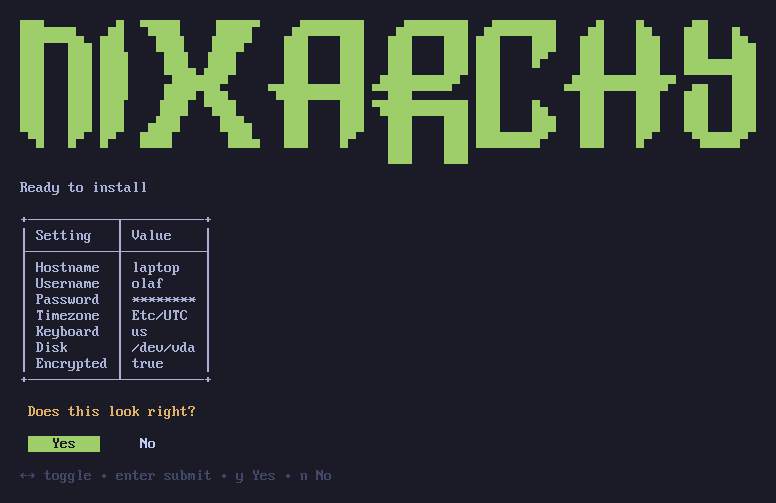
Everything you chose, once, before anything is written. No sends you back to the first question.
Then it gets out of the way
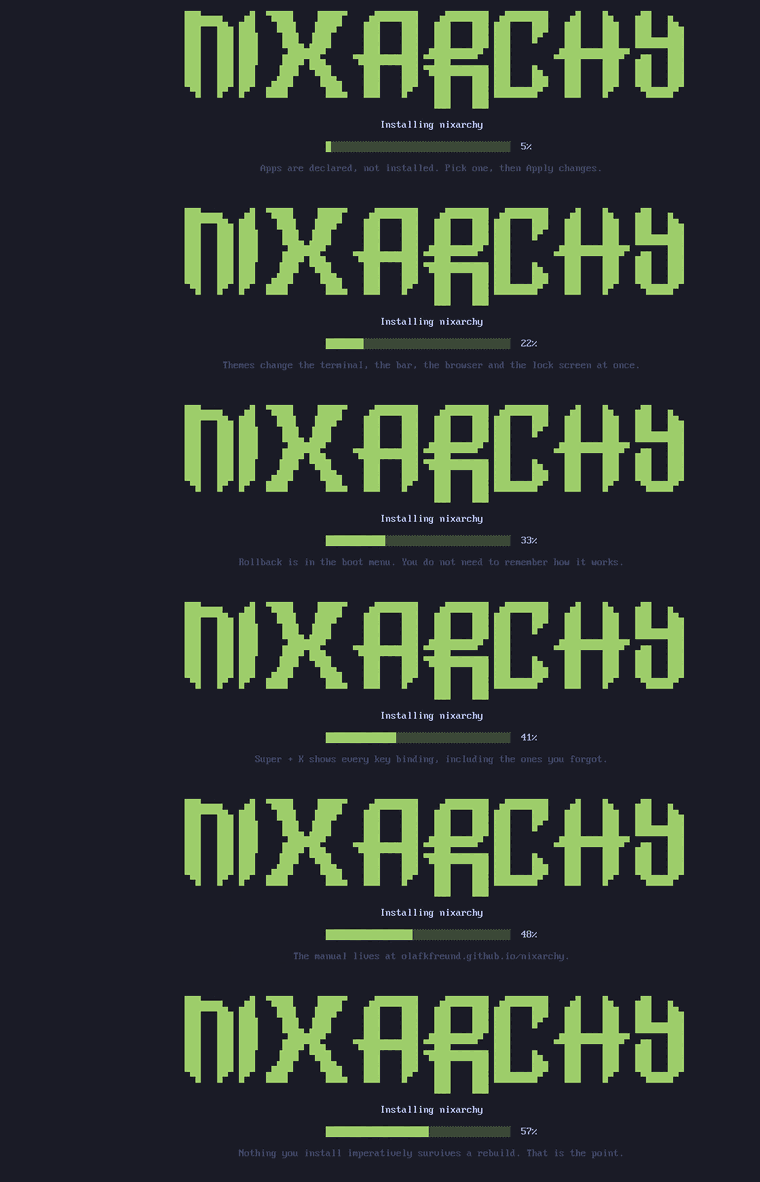
The log goes to /var/log/nixarchy-install.log rather than the screen. A wall
of store paths tells nobody anything they can act on, and it makes an ordinary
install look like something going wrong. If it does go wrong, the log stops
hiding: the failure screen puts the last of it on screen with the path to the
rest.
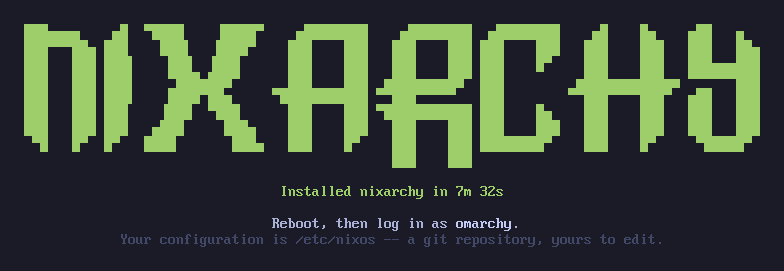
Reboot and you are at the desktop. On an encrypted install you go straight there: the passphrase you typed at boot already proved who you are.
What you end up with is a flake you own at /etc/nixos — a git repository
holding flake.nix, configuration.nix, the disk layout that formatted the
disk, and your app selection. Edit it, run nh os switch. A rebuild immediately
after installing builds nothing, because everything the installer did is
described in those files rather than done behind them.
Three things to know first.
The image needs a network. It downloads the closure rather than carrying it, so an install is as fast as your connection. Making it offline is the next phase of the work.
It is UEFI only. The layout is an ESP with systemd-boot, and there is no BIOS path — the installer checks and refuses rather than failing at the end.
A Bluetooth keyboard cannot unlock an encrypted disk. The passphrase prompt happens in the initrd, before Bluetooth exists, so a keyboard that pairs once the desktop is up has no way to type into it — the machine simply waits. Upstream’s manual carries the same warning because people hit it. Use a wired keyboard for the first boot, or choose an unencrypted install with Ctrl+C.
Configuring it, once you are in
Everything is behind one key.
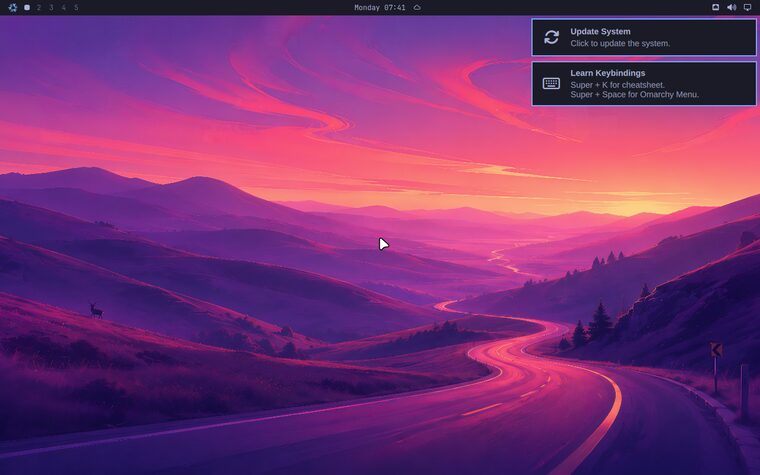
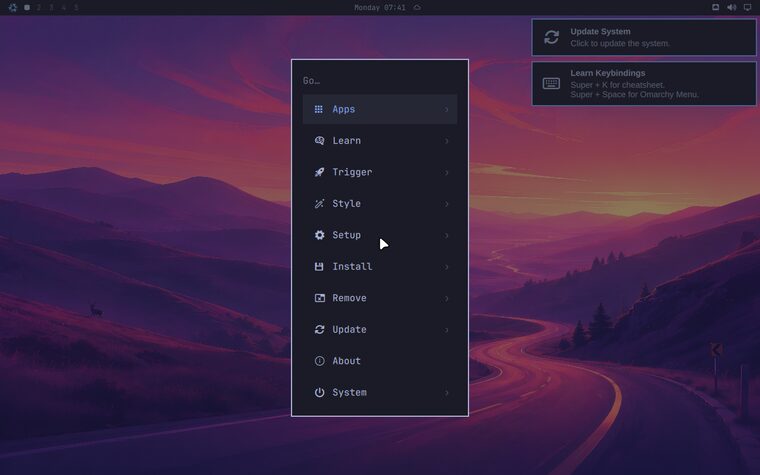
Super + Space opens the menu — the same one upstream has, because it is
upstream’s. Nothing about the desktop was reimplemented.
Super + K shows every key binding, which is the faster way in if you do
not know what you are looking for yet.
Install ▸
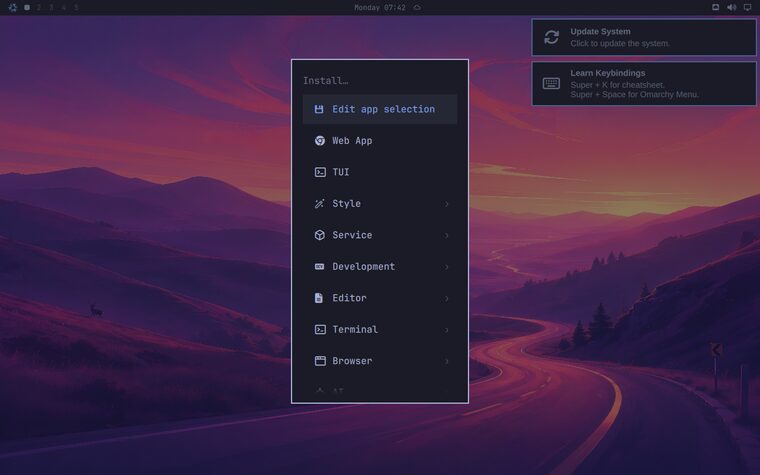
This is where nixarchy differs, and the difference is the whole point. Upstream’s
Install rows run pacman -S. Here they write a line into
~/.config/nixarchy/apps.nix and nothing is installed until you apply.
That is not a limitation being worked around. It is what makes the machine describable: an app you picked is a line someone can read, in a file you own, which survives every rebuild — and one you did not pick cannot linger because nothing ever installed it imperatively.
Pick what you want, then Install ▸ Apply changes, which copies the selection
into your flake and runs nh os switch.
Install ▸ Search
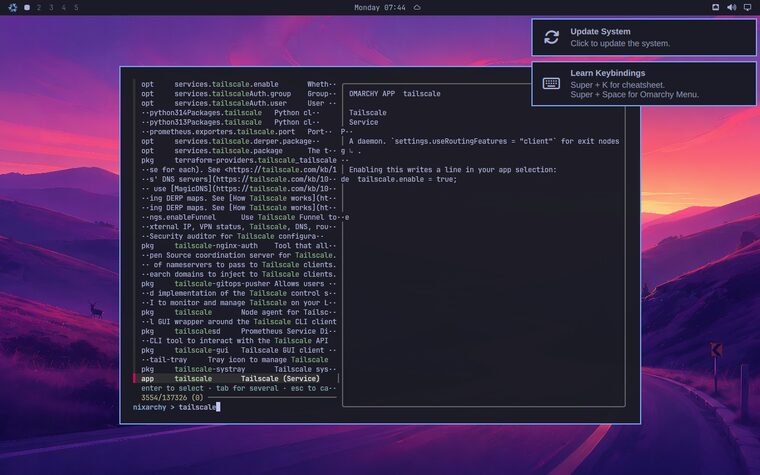
Omarchy’s menu offers 56 applications. Search offers the rest of NixOS: one
fuzzy picker over every nixpkgs package, every NixOS option and the app
selection — 137,526 rows in that screenshot, 3,554 of them matching
tailscale — with each entry’s type, default and documentation in the preview.
The preview is the part worth noticing. It does not just name the package; it
shows what selecting it writes. tailscale.enable = true; is a line you could
have typed yourself, and the menu is only saving you the trip to
search.nixos.org.
The guide
Every nixarchy desktop ships with nixi: a live hands-on tour, a manual search that works with the network off, and a tutor that answers about your machine rather than about Linux in general. It is what a first hour on an unfamiliar desktop should have.
It is on by default, which for a bar widget means one specific thing:
nixarchy installs it into ~/.config/omarchy/plugins/, so the snowflake is
offered under Setup ▸ Plugins. Installing a plugin is not enabling one —
that choice lives in shell.json and is yours, exactly as it is for any plugin
you add yourself. Turn it on once and it stays on.
The server it talks to listens on 127.0.0.1:8642 and nothing else. The one
part that touches the network is a weekly refresh of its copy of the nixarchy
and Omarchy manuals, from those two repositories.
If you would rather not have it, one line in your Home Manager configuration takes all of it away — the widget, the server, the timer and the package:
services.nixi.enable = false;
That is nixi’s own option, not a nixarchy alias, so everything else it
documents (services.nixi.watcher.enable, services.nixi.port, and the rest)
works the same way here.
Or: add it to NixOS you already run
If the machine already runs NixOS, you do not want the ISO. The rest of this page is that path.
1. Install NixOS
Use the official NixOS installer and get to a booting system with a user account. Two things worth deciding at that stage, because nixarchy inherits them rather than setting them:
| Upstream default | Here |
|---|---|
| Full-disk encryption, mandatory | Yours to choose during the NixOS install (LUKS is a checkbox in the graphical installer). nixarchy does not add it afterwards. |
| Limine boot loader with snapshots | Whatever boot loader you picked; systemd-boot is the common one. Rollback comes from NixOS generations, see system snapshots. |
Upstream’s note about Bluetooth keyboards still holds if you encrypt: the passphrase prompt runs before Bluetooth, so use a wired or 2.4 GHz keyboard.
2. Run the doctor first
nix run github:olafkfreund/nixarchy#doctor
It reads the running system and prints the configuration this particular machine needs, before nixarchy is an input anywhere. It changes nothing. On a machine that already has Hyprland behind greetd, for example, it tells you to keep your greeter and your Hyprland package rather than letting the rebuild fail on the conflict. Paste what it prints into the module block in the next step.
3. Add the flake input
From the README, the whole of it:
{
  inputs.nixarchy.url = "github:olafkfreund/nixarchy/v4.0.1-1";

  outputs = { nixpkgs, nixarchy, ... }: {
    nixosConfigurations.mymachine = nixpkgs.lib.nixosSystem {
      modules = [
        nixarchy.nixosModules.nixarchy
        {
          programs.nixarchy.enable = true;
          # Where nixarchy-apply copies your app selection before rebuilding.
          programs.nixarchy.flake = "/home/you/nixos-config";
        }
        ./nixarchy-apps.nix # the generated selection
      ];
    };
  };
}
And for the user who will sit at the desktop, in Home Manager:
{
  imports = [ nixarchy.homeManagerModules.nixarchy ];
  programs.nixarchy.enable = true;
}
Without the Home Manager half there is no app selection, no theme state and no
seeded config. Pin a release tag rather than main unless you want the desktop
moving under you.
Two lines deserve a second look:
programs.nixarchy.flakeis the directorynixarchy-applycopies your app selection into. It defaults to/etc/nixos; most people keep their flake in a git repo under~, so set it../nixarchy-apps.nixmust be imported by you.nixarchy-applywrites that file into the flake root, but a flake cannot read outside its own tree and nothing imports the copy on your behalf. Leave the line out and the Install menu marks apps enabled, the rebuild succeeds, and nothing is ever installed.nixarchy-applywarns loudly when nothing imports the file, so read what it prints.- Unfree packages are allowed by default. Most of what the Install menu
offers is unfree — the browsers, the editors, Steam, the AI clients — so
enabling nixarchy sets
nixpkgs.config.allowUnfree. Turn it off withprograms.nixarchy.allowUnfree = false;— and turn it off there rather than settingnixpkgs.config.allowUnfree = falseyourself, becausenixpkgs.configis a free-form attribute set where two definitions of the same key do not resolve by priority, and yours would not win.
4. Rebuild, log out, pick Omarchy
sudo nixos-rebuild switch --flake /home/you/nixos-config
Every remaining conflict shows up here as an evaluation error, not as a broken
machine. If one of them is unreadable — and the trace for a conflicting option
lands in nixpkgs’ own lib/modules.nix, naming no file of yours — pipe it
through the explainer rather than reading the trace:
sudo nixos-rebuild switch --flake /home/you/nixos-config 2>&1 |
  nix run github:olafkfreund/nixarchy#explain
It covers the failures that actually stop this step, including the one that
reads as path '...' does not exist about a file you can ls — that is a
file you have not git added, and a flake cannot see it. There is a table of
what it recognises in troubleshooting.
Then log out and choose the Omarchy session at the login screen. On SDDM the login screen is Omarchy’s own branded greeter; on greetd, GDM or LightDM you keep your greeter and it offers the Omarchy entry like any other session.
If you already have a ~/.config/hypr/hyprland.lua, it is not touched. The
Omarchy session runs Hyprland against Omarchy’s config in the store, so both
desktops keep working and you choose between them at the greeter.
5. Check it from inside
nix run github:olafkfreund/nixarchy#verify
Run from the Omarchy session. It asks the questions CI cannot: hardware rendering or llvmpipe, whether bluetoothd sees an adapter, whether the shell functions and compose sequences are wired in. It prints what it found rather than a verdict.
What is different from here on
Installing software is the first thing that will surprise you: the Install
menu edits ~/.config/nixarchy/apps.nix and builds nothing until you choose
Apply changes. Read the NixOS philosophy before anything
else in this manual; every other difference follows from it.
Help if you’re stuck
Upstream’s #omarchy-help on the Discord is
for Arch. For nixarchy-specific trouble, run
nix run github:olafkfreund/nixarchy#doctor, read
troubleshooting, and open an issue on the repository with
the output of omarchy debug --no-sudo --print.
No Nix yet? Try it from any Linux
#try above is a nix run app, so it needs Nix installed. If you are on
Ubuntu, Fedora, Arch or anything else and would rather look first, there is a
script that needs only qemu and curl from your own package manager:
curl -fLO https://raw.githubusercontent.com/olafkfreund/nixarchy/main/installer/try-nixarchy.sh
less try-nixarchy.sh          # it is going to download an image and start a VM
bash try-nixarchy.sh
It fetches the latest release’s installer image, checks it against the
release’s own SHA256SUMS, and boots it in a UEFI VM. --boot starts the
machine you installed, --fresh wipes it and starts again, --help lists the
rest.
It takes the latest release and cannot resolve a particular commit — if you
have Nix, #try is the better door and knows it.